SoaS Blueberry Instructions: Difference between revisions
mNo edit summary |
m →For Windows Users: grammatical edits |
||
| Line 13: | Line 13: | ||
[[Image:Logo_square_black_04.png|left|200px]] | [[Image:Logo_square_black_04.png|left|200px]] | ||
* Download the latest version of the '''Fedora LiveUSB Creator''' from http://fedorahosted.org/liveusb-creator and extract it | * Download the latest version of the '''Fedora LiveUSB Creator''' from http://fedorahosted.org/liveusb-creator and extract it. | ||
* Plug a target USB flash drive into your computer (minimum 1-gigabyte) | * Plug a target USB flash drive into your computer (minimum 1-gigabyte). | ||
* Launch LiveUSB Creator | * Launch LiveUSB Creator. | ||
* Select '''Sugar on a Stick (Blueberry)''' in the drop-down menu on the upper-right side | * Select '''Sugar on a Stick (Blueberry)''' in the drop-down menu on the upper-right side. | ||
* Adjust the Persistent Storage slider | * Adjust the Persistent Storage slider. This enables you to save your work in Sugar onto the device. | ||
* Select your flash drive as the target and click the '''Create Live USB''' button | * Select your flash drive as the target and click the '''Create Live USB''' button. | ||
* Wait for the process to finish | * Wait for the process to finish, then close the LiveUSB Creator program. | ||
* Stop your flash drive using the '''Safely Remove Hardware''' dialog and eject it. | * Stop your flash drive using the '''Safely Remove Hardware''' dialog and eject it. | ||
Revision as of 15:18, 24 November 2009
  |
 |
For Windows Users

- Download the latest version of the Fedora LiveUSB Creator from http://fedorahosted.org/liveusb-creator and extract it.
- Plug a target USB flash drive into your computer (minimum 1-gigabyte).
- Launch LiveUSB Creator.
- Select Sugar on a Stick (Blueberry) in the drop-down menu on the upper-right side.
- Adjust the Persistent Storage slider. This enables you to save your work in Sugar onto the device.
- Select your flash drive as the target and click the Create Live USB button.
- Wait for the process to finish, then close the LiveUSB Creator program.
- Stop your flash drive using the Safely Remove Hardware dialog and eject it.
For Linux Users
Linux Users will use a slightly different approach than Windows Users, to ensure maximum compatibility with different distributions. Please follow the instructions thoroughly to make sure not to loose any data.
- Download the Sugar on a Stick (Blueberry) live image from here: http://download.sugarlabs.org/soas/releases/soas-2-blueberry.iso
- If you are a Fedora User, download the livecd-iso-to-disk script from here: http://download.sugarlabs.org/soas/releases/livecd-iso-to-disk.sh
- Become root and execute the following command in a terminal:
- ./livecd-iso-to-disk.sh --overlay-size-mb xxx --delete-home ./soas-2-blueberry.iso /dev/sdX
- In this case, xxx is a size in MB, allocated for persistently storing your data.
- The X stands for the letter of your flash drive.
- You might need to add a number at the end, if your flash drive is partitioned / formatted, too.
- Formatting your flas drive through the script also works by adding: --format --reset-mbr
- Become root and execute the following command in a terminal:
- If you use any other distribution, download the image-writer tool from here: http://download.sugarlabs.org/soas/releases/image-writer
- Open a terminal and become root, either by using su or sudo.
- Enter the following command: ./image-writer soas-2-blueberry.iso
- The script will output a device name; confirm that it matches with your flash drive.
- You will be notified once the process has finished, while you can also check the ETA for reference.
For Mac/OSX Users
The procedure for Mac OS/X Users follows the one for Linux Users, but differs in some parts. Additionally, Mac Users should be aware that they are able to prepare their flash drive on a Mac, while booting the flash drive itself on a Mac may not necessarily work. This depends especially on their hardware's generation. In this case, using a boot helper as explained in the wiki might help. Please pay attention when running the dd command, as it will wipe your flash drive!
- Download the Sugar on a Stick (Blueberry) live image from here: http://download.sugarlabs.org/soas/releases/soas-2-blueberry.iso
- Open a terminal and run: diskutil unmountDisk /dev/diskX (whereas X is the device number)
- Run: sudo dd if=./soas-2-blueberry.iso of=/dev/diskX bs=512
- Eject your flash drive by running: diskutil eject /dev/diskX
For More Information
With its Sugar on a Stick (Blueberry) release, Sugar Labs also provides additional instructions for using Sugar on a Stick on OLPC's XO-1, as well as for running it in virtual appliances. The wiki contains more information for these purposes. In case you encounter any issues, do not hesitate to ask on our bug tracker here: https://launchpad.net/soas
For more information, please visit
www.sugarlabs.org
About This Document
A PDF layout of this file is available at http://people.sugarlabs.org/sdz/soas-v2-instructions.pdf with SVG source at 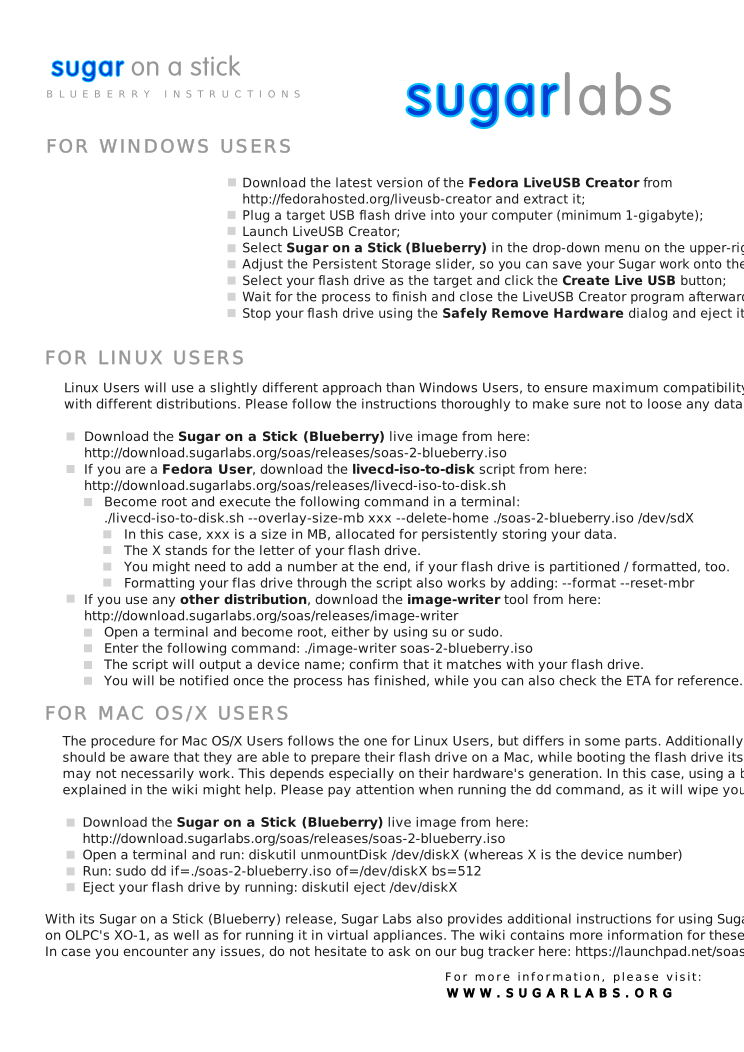 . Note that the wiki page version is likely to be more up-to-date.