Tutorials/Installation/Install SoaS in VirtualBox-f18: Difference between revisions
| (40 intermediate revisions by 2 users not shown) | |||
| Line 1: | Line 1: | ||
== | ==Install with Anaconda f18 in VirtualBox== | ||
;This install is used when you want to install a fedora 18 desktop to a hard-disk; Virtualbox HD or a 8 GB USB. | |||
:A similar but simpler installer is entered in booted Live CD's using the command '''liveinst''' in root sugar-terminal(su) or other root terminal. | |||
;this differs from the installer on fedora 17 or older versions | |||
:http://wiki.sugarlabs.org/go/Tutorials/Installation/Install_SoaS_in_VirtualBox | |||
*anaconda [https://fedoraproject.org/wiki/Features/NewInstallerUI NuUI installer] is NEW and has bugs: | *anaconda [https://fedoraproject.org/wiki/Features/NewInstallerUI NuUI installer] is NEW and has bugs: | ||
| Line 6: | Line 10: | ||
*Sample Install to Virtualbox 4.2.4 using F18 Beta DVDx86_64 | *Sample Install to Virtualbox 4.2.4 using F18 Beta DVDx86_64 | ||
:[[File:F18-1.png|800px]] | |||
:[[File:F18-2.png|800px]] | |||
:[[File:F18-3.png|800px]] | |||
:[[File:F18-4.png|800px]] | |||
:[[File:F18-5.png|800px]] | |||
===Settings In Virtualbox=== | ===Settings In Virtualbox=== | ||
:[[File:F18-6-settings.png|800px]] | |||
:[[File:F18-7select-DVD.png|800px]] | |||
:[[File:F18-9-start.png|800px]] | |||
===Start Installer=== | ===Start Installer=== | ||
{{Note/note|If you select: Test this media & and install Fedora (the default) there will be 4 minute or longer wait as file checking is done There is no indication it is happening}} | |||
{{Note/note|Install Fedora (top line) has no delay.}} | |||
:[[File:F18-10-grub-install.png|800px]] | |||
:[[File:F18-11.png|800px]] | |||
===Anaconda main Hub=== | ===Anaconda main Hub=== | ||
*[[File:F-18-12-main_anaconda_hub.png]] | {{Note/note|WAIT until Installation source and software selection checking finishes before clicking on any spokes otherwise installer may hang.}} | ||
*When it finishes: | |||
;Click on each section (spoke) to change or set | |||
: click [Done] to return to main Hub | |||
:[[File:F-18-12-main_anaconda_hub.png|800px]] | |||
===Storage (Disk Selection) then [DONE]=== | ===Storage (Disk Selection) then [DONE]=== | ||
*[[File:F18- | *To format the disk or reclaim space click on [Continue] right bottome to installer | ||
:NOTE: Disk selection filters out non-selected Disks and makes them invisible to the installer | |||
:A booted dd USB will show on initial selection screen '''DO NOT Select it.''' | |||
*'''Example:2 Disk LVM install''' | |||
[[Tutorials/Installation/Install_SoaS_in_VirtualBox-f18#Reclaim_Space|SKIP this section if not using 2 Disks]] | |||
*Error if disk too small (8 GB) for Development and Creative Workstation + | |||
[[File:Error_Msg-Disk_too_small.png]] | |||
*2 30 GB disks in VirtualBox | |||
:Select both disks | |||
[[File:F18-2_disk-LVM.png]] | |||
====Reclaim Space==== | |||
*'''Seems to necessary to select Partition type first''' | |||
[+] partition scheme drop down box click > [+] | |||
:Standard Partition | |||
:BTRFS | |||
:LVM (default) | |||
[[File:F18--21-Part-scheme.png]] | |||
*[ X ]"I don't not need help: Let me customize disk partitioning" | |||
[[Tutorials/Installation/Install_SoaS_in_VirtualBox-f18#Reclaim_Space-continued|Skip the next section if Customize partitioning is not selected]] | |||
*Option to let user [+ -] partitions: | |||
=====Customize partitioning===== | |||
[[File:F18-manual_Partitioning.png]] | |||
[[File:F.18-add_mounpoint2.png]] | |||
=====Raid Partitioning===== | |||
*Need at least 2 disks selected | |||
:2 disks selected | |||
[[File:F18-2disks.png]] | |||
*[+]Customize | |||
:Click on small [+] on right gives drop-down | |||
:Select raid | |||
[[File:F18-raid.png]] | |||
*Raid setup | |||
[[File:F18-raid2.png]] | |||
*[Finish Partitioning] | |||
[[File:F18-finish_partitioning.png]] | |||
*Returns directly to Anaconda Main Hub | |||
::Note: bootloader defaults to "first" disk | |||
::Of those disks initially selected | |||
===Software Selection and [ | ====Reclaim Space-continued==== | ||
*select left column ( | *If Customize is not used | ||
[[File:F-14-software-spoke.png]] | ;[Reclaim space] | ||
:Reclaim Disk space window | |||
::shows disk partitions with drop down boxes - default is '''Preserve''' click on Preserve; get dropdowns '''Preserve; Shrink; Delete''' | |||
;select your choice | |||
;Note in latest anaconda (18.34-1) the selections are now located on the bottom line of the reclaim window. | |||
: http://dl.fedoraproject.org/pub/alt/qa/20121201_f18-smoke2/ | |||
[[File:F18-22-reclaim_partitions.png]] | |||
::Do this for each partition shown. | |||
;When finished [Reclaim space] returns to main Hub | |||
:[[File:F18-13-disk.png|800px]] | |||
*Click [Done] to return to main hub | |||
===Software Selection and [Done]=== | |||
*select left column (Environment) and right Column (Add-ons) | |||
:Gnome-desktop is default | |||
; scroll down left collumn and select sugar-desktop | |||
:[[File:F-14-software-spoke.png|800px]] | |||
;Wait for software checking | ;Wait for software checking | ||
| Line 34: | Line 104: | ||
===Time Zone select and [Done]=== | ===Time Zone select and [Done]=== | ||
:[[File:F18-15-TZ.png|800px]] | |||
===Begin Installation=== | ===Begin Installation=== | ||
:Appears when all warnings for unfinished spokes are gone | :Appears when all warnings for unfinished spokes are gone | ||
:[[File:F18-16-install.png|800px]] | |||
===Root Password=== | ===Root Password=== | ||
*Appears after install begins | *Appears after install begins | ||
[[File:F18-17-root_pswd.png]] | :[[File:F18-17-root_pswd.png|800px]] | ||
* | * Enter password on both lines and hit '''[back]''' | ||
: hit '''[back]''' a second time for a weak password. | |||
:If the root password is not entered during install; anaconda will pause at the greyed out [Finish Configuration] until it is entered. | |||
:Once the root password is entered '''[Finish Configuration]''' appears and the install will complete. | |||
:Wait for '''[Reboot]''', (or '''[Quit]''' if live), when install is completed. | |||
===Remove CD/DVD in VirtualBox/Settings/Disk settings and start your Virtual Machine=== | ===Remove CD/DVD in VirtualBox/Settings/Disk settings and start your Virtual Machine=== | ||
HINT: export this virtual machine before running it to save it before it runs Firstboot. | |||
:this can be later imported for use by another user. | |||
===[[Sugar_Creation_Kit#Tutorials|More Tutorials]]=== | |||
====External Tutorial: [http://nicubunu.blogspot.com/2012/11/a-visual-tour-of-fedora-18-new.html a-visual-tour-of-fedora-18]==== | |||
hit <== (BACK) in browser to return here. | |||
Latest revision as of 23:13, 12 December 2012
Install with Anaconda f18 in VirtualBox
- This install is used when you want to install a fedora 18 desktop to a hard-disk; Virtualbox HD or a 8 GB USB.
- A similar but simpler installer is entered in booted Live CD's using the command liveinst in root sugar-terminal(su) or other root terminal.
- this differs from the installer on fedora 17 or older versions
- http://wiki.sugarlabs.org/go/Tutorials/Installation/Install_SoaS_in_VirtualBox
- anaconda NuUI installer is NEW and has bugs:
- A major feature of f18 is the development of newUI a new anaconda.
- Sample Install to Virtualbox 4.2.4 using F18 Beta DVDx86_64


Settings In Virtualbox


Start Installer


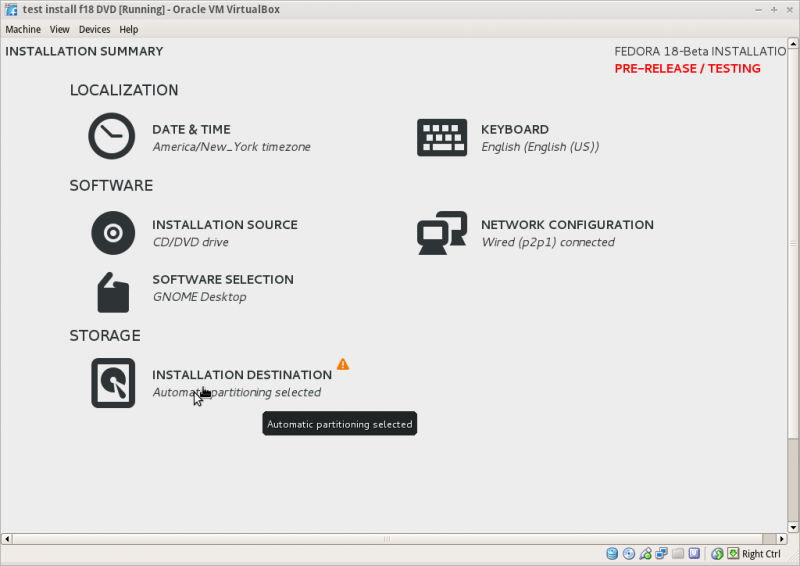
Anaconda main Hub
- When it finishes:
- Click on each section (spoke) to change or set
- click [Done] to return to main Hub

Storage (Disk Selection) then [DONE]
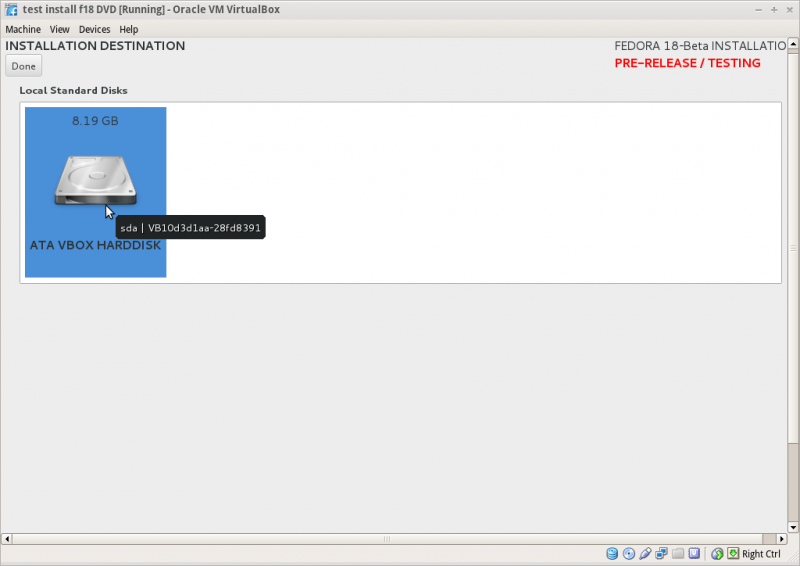
- To format the disk or reclaim space click on [Continue] right bottome to installer
- NOTE: Disk selection filters out non-selected Disks and makes them invisible to the installer
- A booted dd USB will show on initial selection screen DO NOT Select it.
- Example:2 Disk LVM install
SKIP this section if not using 2 Disks
- Error if disk too small (8 GB) for Development and Creative Workstation +

- 2 30 GB disks in VirtualBox
- Select both disks

Reclaim Space
- Seems to necessary to select Partition type first
[+] partition scheme drop down box click > [+]
- Standard Partition
- BTRFS
- LVM (default)

- [ X ]"I don't not need help: Let me customize disk partitioning"
Skip the next section if Customize partitioning is not selected
- Option to let user [+ -] partitions:
Customize partitioning


Raid Partitioning
- Need at least 2 disks selected
- 2 disks selected

- [+]Customize
- Click on small [+] on right gives drop-down
- Select raid

- Raid setup

- [Finish Partitioning]

- Returns directly to Anaconda Main Hub
- Note: bootloader defaults to "first" disk
- Of those disks initially selected
Reclaim Space-continued
- If Customize is not used
- [Reclaim space]
- Reclaim Disk space window
- shows disk partitions with drop down boxes - default is Preserve click on Preserve; get dropdowns Preserve; Shrink; Delete
- select your choice
- Note in latest anaconda (18.34-1) the selections are now located on the bottom line of the reclaim window.
- http://dl.fedoraproject.org/pub/alt/qa/20121201_f18-smoke2/

- Do this for each partition shown.
- When finished [Reclaim space] returns to main Hub

- Click [Done] to return to main hub
Software Selection and [Done]
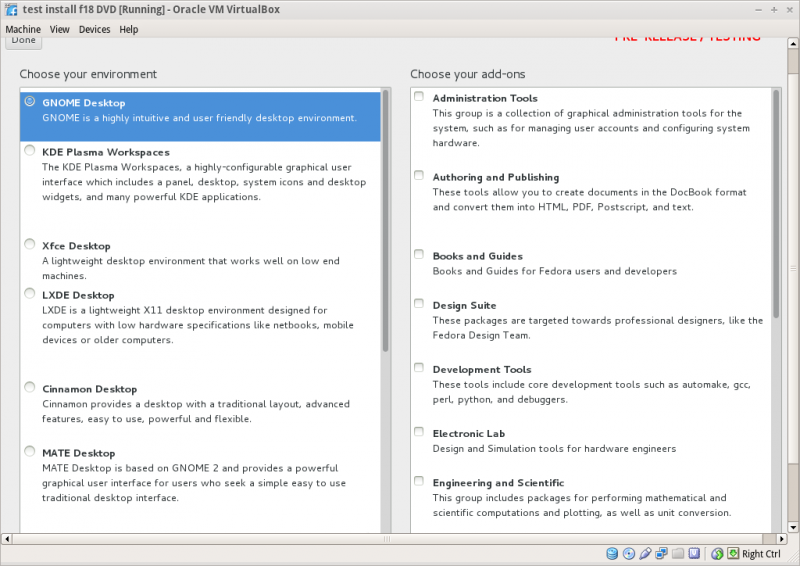
- select left column (Environment) and right Column (Add-ons)
- Gnome-desktop is default
- scroll down left collumn and select sugar-desktop
- Wait for software checking

Network Configuration and [Done]
- recognizes wired DHCP connections if present
- Wireless will show up if wlan0 is visible and supported
- [Configure] to set up either connection.
Time Zone select and [Done]

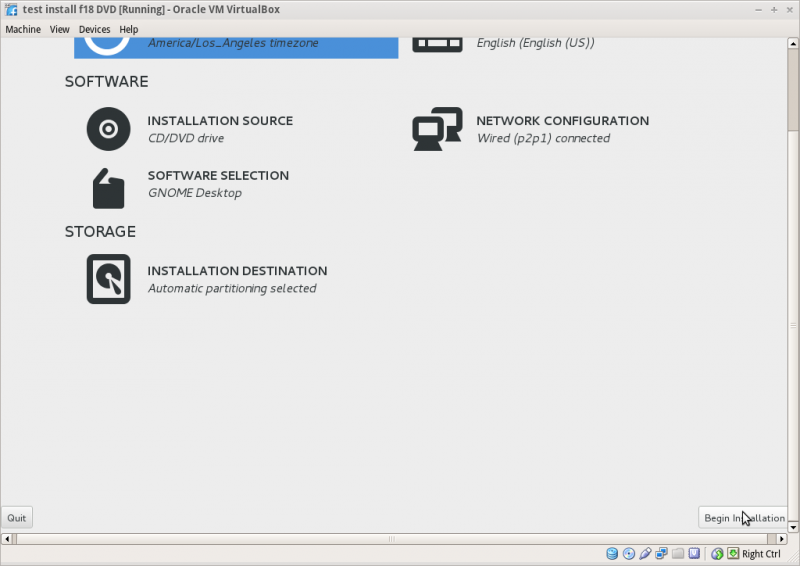
Begin Installation
- Appears when all warnings for unfinished spokes are gone

Root Password
- Appears after install begins

- Enter password on both lines and hit [back]
- hit [back] a second time for a weak password.
- If the root password is not entered during install; anaconda will pause at the greyed out [Finish Configuration] until it is entered.
- Once the root password is entered [Finish Configuration] appears and the install will complete.
- Wait for [Reboot], (or [Quit] if live), when install is completed.
Remove CD/DVD in VirtualBox/Settings/Disk settings and start your Virtual Machine
HINT: export this virtual machine before running it to save it before it runs Firstboot.
- this can be later imported for use by another user.
More Tutorials
External Tutorial: a-visual-tour-of-fedora-18
hit <== (BACK) in browser to return here.