Tutorials/Installation/Install SoaS in VirtualBox-f18: Difference between revisions
| Line 24: | Line 24: | ||
*[[File:F18-16-install.png]] | *[[File:F18-16-install.png]] | ||
===Root Password=== | ===Root Password=== | ||
* enter password | [[File:F18-17-root_pswd.png]] | ||
* enter password on both lines and hit [back] 2 times | |||
*Wait for [Reboot] when install is completed | *Wait for [Reboot] when install is completed | ||
===Remove CD/DVD in VirtualBox/Settings/Disk settings and start your Virtual Machine=== | ===Remove CD/DVD in VirtualBox/Settings/Disk settings and start your Virtual Machine=== | ||
Revision as of 20:55, 27 November 2012
Install_SoaS_in_VirtualBox-with Anaconda f18
- Sample Install to Virtualbox 4.2.4 using F18 Beta DVDx86_64
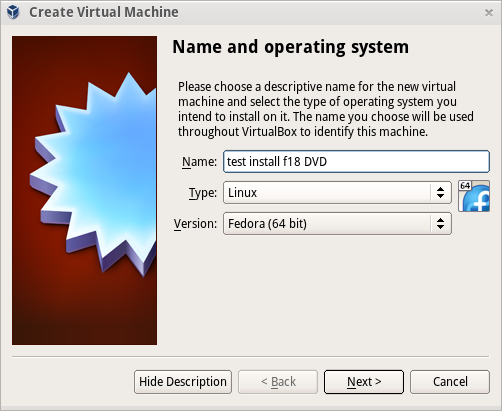
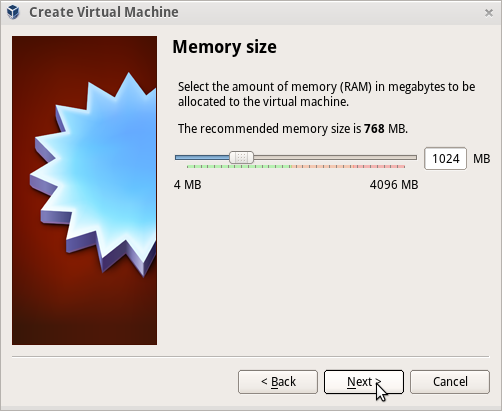
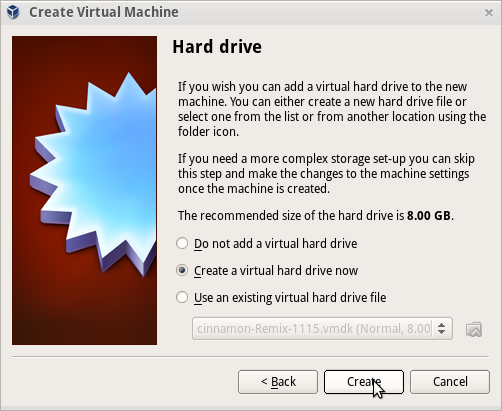
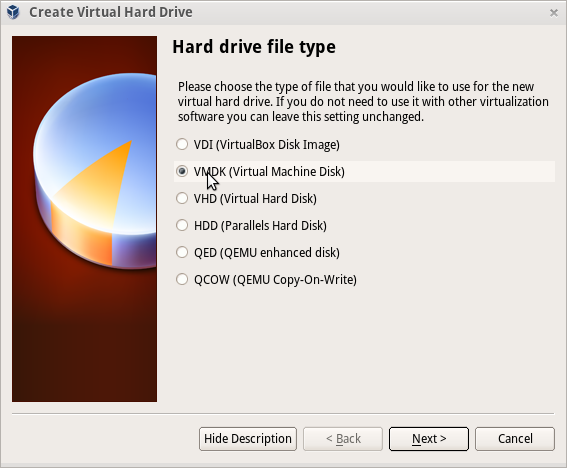
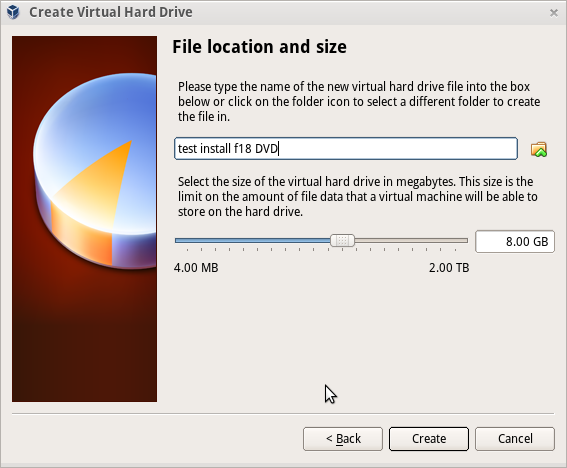


Settings In Virtualbox


Start Installer


Anaconda main Hub

Storage (Disk Selection) then [DONE]

Time Zone select and [Done]

Begin Installation
- Appears when all warnings for unfinished spokes are gone

Root Password

- enter password on both lines and hit [back] 2 times
- Wait for [Reboot] when install is completed