Sugar Creation Kit/sck/Advanced Topics: Difference between revisions
m →m-anish VM: added Info |
|||
| Line 268: | Line 268: | ||
<satellit_f20> nice demo VirtualBox runs on almost all OS Mac Linux M$ | <satellit_f20> nice demo VirtualBox runs on almost all OS Mac Linux M$ | ||
*[Server-devel]11/18/2013 '''The three step XSCE demo!''' | |||
Hi, Had some time on my hand this week to try out XSCE in a virtual environment. It actually worked out pretty well, and now there's a working appliance. Here's the three step XSCE demo! | |||
Step #1 - Download and install Virtualbox | |||
Head to https://www.virtualbox.org/wiki/Downloads to download the Virtualbox package for your OS. | |||
Install instructions may vary for different platforms but should be pretty straightforward. | |||
Step #2 - Download and install the XSCE appliance | |||
Download the XSCE Virtualbox appliance from here https://docs.google.com/file/d/0B3eW2YPe6koIVXRVbDhSR0xXQ1U (approx 1.6 GB) | |||
[optional] Verify the md5sum to see if the image is not corrupt - 56a4f141b564b0d2bd65c543a5e585c6 | |||
Open Virtualbox. Go to File -> Import Appliance. | |||
A dialog will appear asking you to "Open Appliance" | |||
Select the file you just downloaded "b_1364170741.ova" | |||
Click "Next" and then click "Import" | |||
A new virtual machine will get created | |||
Step #3 - Play! | |||
Start the virtual machine just created. It will open a window, and an OS will appear to boot. | |||
Wait till it boots. Once it has booted, a login prompt will appear in a text console. Your XSCE is now up and ready! | |||
To test/demo, on the host OS (i.e., the one where you are running the virtualbox software in) open a browser | |||
XSCE homepage: http://localhost:3380/ | |||
From the homepage you should be able to navigate to Internet In A Box. This image contains a test dataset. | |||
The link to the moodle homepage will NOT work. To access moodle, go to http://localhost:3380/moodle/login/index.php. I am not able to login, and there seems some issue with the homepage loading. | |||
Administrative GUI: http://localhost:9990 (username=root, password=admin) | |||
Server monitoring tool - Munin: http://localhost:3380/munin (username=admin, password=munindxs) | |||
To check the authserver, go to http://localhost:5000/ (It will probably say "No Sugar platform detected, please register your laptop") | |||
Notes: | |||
This is only meant to be a quick demo to see what an XSCE is on your laptop/PC. | |||
I didn't setup root login (or atleast don't know the password to it). So you won't be able to login to the XSCE once it's running. Should not be a huge issue just for end-user demo purposes. | |||
This is just a weekend hack, I did based on a Vagrantfile supplied by Santi. At this moment, this is not officially supported or anything (but as far as I know in my testing, it works!) | |||
If this is a useful thing to maintain (based on feedback to this thread :-) ) I (or somebody else) can propose this as a feature for 0.5/6. So there are officially supported demo appliances. | |||
A wiki page is in the works. | |||
Please try it out and let me know what you think of it! | |||
Thanks, Anish | |||
*added Info ///18/2013 | |||
It is a vagrant generated virtual machine so: | |||
- the user/password are vagrant/vagrant | |||
- user 'vagrant' is in sudoers group | |||
- ssh access is possible using port 2222 in localhost | |||
*I have an entry in .ssh/config so I can access using `ssh vagrant`: | |||
Host vagrant | |||
HostName 127.0.0.1 | |||
User vagrant | |||
Port 2222 | |||
UserKnownHostsFile /dev/null | |||
StrictHostKeyChecking no | |||
PasswordAuthentication no | |||
IdentityFile "~/.vagrant.d/insecure_private_key" | |||
IdentitiesOnly yes | |||
LogLevel FATAL | |||
The insecure private key is available Github [1]. | |||
1: https://github.com/mitchellh/vagrant/tree/master/keys | |||
===activitycentral VM=== | ===activitycentral VM=== | ||
Revision as of 10:07, 18 November 2013
Sweets Distribution
Sugar Network Tutorial
- Annotated screen shots with Links
Sweets-Getting Started
- Click on title ^ to go to topic
- Some ideas on how to present SWEETS. (Inkyfingers)
- look at Infrastructure for an overview.
Sweets Distribution
- Click on title ^ to go to topic
- (Sweets Distribution is easier to use for Ubuntu' and its Derivatives (Adding an additional Repository to apt) as the packages are pre-configured, ready to use.)
- (Developed for Trisquel-sugar-Toast )
Sweets
- Click on title ^ to go to topic
- (Advanced)
- Debian, Ubuntu, Fedora, Mandriva, openSUSE, and Gentoo
- (This guide describes how to run Sugar using Sugar Packaging Management System, Sweets.)
- Request for better Documentation of installs
- (For developers)
Sugar Network
- Sugar Network
- Overview: Sugar_Network/Concept
- Collaboration support for Internet-less environments (but not only)
Harmonic Distribution
- Look at this tutorial: Sugar_Network/Tutorial
* The possibility to launch Base Software in heterogeneous
  software and hardware environments.
* Using Base Software, provide access to various Content
  (Sugar activities, artifacts created by Sugar activities, books, etc.)
  created within the Sugar community.
* Using Base Software, provide collaborative functionality to
  support Social activity around the Content.
* Instruments and workflows to adapt Content and Base Software
  to specific needs that Sugar Deployment might face,
  including extreme ones like off-line environments and restricting
  hardware.
- [Sugar-devel] [SWEETS] Testing collaboration related fixes 05/07/2012
Hi all!
Following the plan for Harmonic Distribution v0.2 (which will be a basis
for Sugar Distribution to use in peruvian pilot), in Sugar Shell code
were made fixes that are intended to make Telepathy (everything related to
Neighbourhood view and Sugar Activities sharing/joining) more stable
(that was broken since global redesign started after 0.88 release).
Fixes are accessible from SweetsDistribution:Factory repository. Follow
regular Sweets Distribution installation instructions[1] to install
fixed Sugar Shell on all supported platforms[2].
Some visible changes in F1 view:
* the number of buddies should be increased from ~20 to 70-90
  some Sugar versions (maybe 0.90-0.92) don't publish information about
  nickname/colors on regular basis; this information are being stored on
  disk for now
* for some buddies, server still don't have information about colors
  (replaced by gray) and nick names (jabber ids)
If you have a time and want to help Puno deployment pilot, please,
consider possibility to install sweets-desktop from Factory repository
and do some testing of collaboration functionality.

Some tips:

* while interacting with another buddies, make sure that all
  participants use Sweets Distribution (some F1 buddies might misbehave)
* the good criteria of stability level of new Sugar is comparing with
  how collaboration happen in 0.88 Sugar.
Source code, for interested in people, can be found in top commits from:

* http://git.sugarlabs.org/desktop/sugar
* http://git.sugarlabs.org/desktop/sugar-toolkit
* http://git.sugarlabs.org/server/prosody-sugar
[1] Sweets_Distribution#Installation
[2] Sweets_Distribution/Supported_platforms

-- Aleksey
Sugar-devel mailing list Sugar-devel@lists.sugarlabs.org
http://lists.sugarlabs.org/listinfo/sugar-devel
BoxGrinder
- BoxGrinder Build is an easy to use command line tool to create appliances (virtual images) from simple plaintext appliance definition files. BoxGrinder can produce appliances for a variety of virtual and cloud platforms using plugins supporting technologies such as VMware or EC2.
- http://boxgrinder.org
- http://boxgrinder.org/community/
- http://boxgrinder.org/tutorials/
- http://boxgrinder.org/tutorials/boxgrinder-build-meta-appliance/
- http://boxgrinder.org/download/boxgrinder-build-meta-appliance/
Pungi
- Advanced
- used to build non-live CD/DVD isos
Pungi needs to run on the arch it is composing, as root, and with an install of what it is composing, eg if you are composing Fedora 8, you need to be running Fedora 8.
This is so that the correct userland tools are used to create the images and such used by anaconda.
The eventual usage of pungi will most likely be in mock chroots to facilitate this.
It needs to run on the arch it is composing due to how anaconda-runtime determines what files to put in the boot images at this time.
Currently the releases of pungi are designed to run on an updated Rawhide system. Development of pungi always tracks Rawhide.
- The following sections..." assume you have installed the mock package and prepared the mock chroot"
Build a boot.iso
- "This section provides instruction on creating PXEboot and boot.iso images"
Build a DVD.iso
- "This section assumes you have installed the mock package and prepared the mock chroot"
Koji
- Click on title ^ to go to topic
- (Very Advanced)
- Koji is the software that builds RPM packages for the Fedora project
Mock
- Mock creates chroots and builds packages in them. Its only task is to reliably populate a chroot and attempt to build a package in that chroot.
How to create an RPM package
- How to create an RPM package in Fedora
sugar-build
- better j-build
Git
- Advanced - Used by Sugar Developers
I installed Fedora 18 last night, and I have to say I like sugar-build
more and more.  With just this steps in a clean F18 you get Sugar
running and ready to hack each part of it:  Kudos Daniel Narvaez!
  Re: [Sugar-devel] F18.. go sugar-build, go! 01/18/2013 03:56 PM
sudo yum install git
git clone git://git.sugarlabs.org/sugar-build/sugar-build
cd sugar-build
make build
make run
- How to migrate activity source control from laptop.org to sugarlabs.org
- Getting started with Gitorious, a web based Git service provided by Sugar Labs
- Nice introduction to git: http://try.github.com/levels/1/challenges/1
Tutorials
- Activity Development in Fedora 17 using Git
- Make your own Sugar Activities
- Sugar Activity Quickstart
L10n Translations
There is a git user named "pootle" that acts as the proxy by which all
PO file translations are committed from the Pootle server.  Please
make pootle a committer on the repo and I will make the connections
between git and the Pootle server.
Some "best practices" about working with git and Pootle are described here.
 Translation Team Best Practices
UFI booting-self-signed-linux-kernel booting-self-signed-linux-kernel
"The procedures for how to boot a self-signed Linux kernel on a platform so that you do not have to rely on any
external signing authority."
systemd for Administrators
"Resource Management in one way or another has been available in systemd for a while already,
so it's really time we introduce this to the broader audience."
Vala
"Vala is a new programming language that allows modern programming techniques
to be used to write applications that run on the GNOME runtime libraries,
particularly GLib and GObject."
groupthink
- Click on title ^ to go to topic
- Very Advanced
- "Groupthink is a library of self-sharing data structures written in python and shared over dbus.
- Together with the D-Bus Tubes provided by the Telepathy framework, this enables data structures to be shared over a network."
OLPC XO-1 and XO-1.5 links and Notes
- Click on title ^ to go to topic
Testing Introductory Page
- Help/Info Wiki Page
wiki.laptop.org
Build 13.1.0
Hexoquinasa
Olpc os builder
- "utility that allows you to build operating system (OS) images for XO laptops"
XO-4 Touch
- specs
XS Community Edition
- School Server - Community Edition (XSCE) project
Git Instructions
- https://sugardextrose.org/projects/dxs/wiki/git
- https://www.atlassian.com/git/workflows#!workflow-forking
Dropbox working with the Journal
"If you don't have a Dropbox account, go to http://www.dropbox.com and sign up.  If you're a heavy Dropbox user,
I highly suggest creating another account just for the XO.
As with all things Linux, there are a few scenarios and use cases to consider.
Here's a distillation, from the easiest installation and on.
1.  Gnome Desktop only, keeping Dropbox on the nand.  No USB drive required.
You're looking for an easy way to transfer notes, small files, etc. between the XO and your "regular" computers
 without having to constantly mess with USB drives.
2.  Gnome Desktop and usage under Sugar in the Terminal.  No USB drive.
The above scenario applies to you, but you'd also like to be able to access /home/olpc/Dropbox under Sugar in the Terminal.
3.  Up to 2 GB of storage as well as Sugar Journal integration.  USB drive required."
- September 18, 2010, 10:10:02 AM by anna
Testing Dextrose in a virtual machine
- Download Image; KVM; VirtualBox
Dextrose Building
Dextrose uses olpc-os-builder, a tool create by OLPC to build official and customized system images.
The Dextrose git repository contains, olpc-os-builder, local customizations specific to Dextrose,
and fixes and enhancements waiting to be pushed upstream.
XSCE in VirtualBox
- 2 Importable XSCE VirtualBox builds:
m-anish VM
- https://docs.google.com/file/d/0B3eW2YPe6koIVXRVbDhSR0xXQ1U/edit
- b_1364170741.ova (1.6G)
- Also see http://lists.laptop.org/pipermail/server-devel/2013-November/006954.html
- Trancript of IRC #schoolserver 11/17/2013:
https://docs.google.com/file/d/0B3eW2YPe6koIVXRVbDhSR0xXQ1U
<satellit_f20> is there a user/password for the VB XSCE? <satellit_f20> It imports fine into virtualBox <satellit_f20> goes to login <m_anish> satellit_f20, I don't know that. I can check. You shouldn't need to login for a demo though.
- (just access stuff in a browser from the host)
<m_anish> just boot the VBox up, and in your host os's browser, try localhost:3380 <satellit_f20> ok <satellit_f20> booting <satellit_f20> works fine here see schoolserver page
<m_anish> try the iiab <m_anish> (it has the test dataset) <m_anish> map should load <satellit_f20> Software Version: 0.4.13 Data Version: 20130214 <satellit_f20> maps load as did list authors by name <satellit_f20> wikipedia is in another language <satellit_f20> Vikipetã opaite tembikuaa hekosãsóva renda. <satellit_f20> http://schoolserver.local/moodle/login/index.php 404 <satellit_f20> no activities to download
<m_anish> yeah, is just a demo <satellit_f20> no upload option here. <satellit_f20> 3 languages en es and arabic? <m_anish> i don't know if uploads are supported in xsce.
<m_anish> i _think_ the third is "devnagari" though confirm with tim as well. <satellit_f20> annas allowed me to upload .xo to it with another menu line <m_anish> devnagari or hindi (is the script of a lot of languages in india/nepal/neighboring regions)
<m_anish> satellit_f20, well this is just a vanilla xsce install in a vbox, abt 2 days old.
<m_anish> satellit_f20, idea is that this could be a very quick demo for someone who has no idea what xsce is <m_anish> satellit_f20, the moodle url is wrong, thats why u get the 404, try replacing schoolserver.local with localhost:3380
<satellit_f20> nice demo VirtualBox runs on almost all OS Mac Linux M$
- [Server-devel]11/18/2013 The three step XSCE demo!
Hi, Had some time on my hand this week to try out XSCE in a virtual environment. It actually worked out pretty well, and now there's a working appliance. Here's the three step XSCE demo!
Step #1 - Download and install Virtualbox
    Head to https://www.virtualbox.org/wiki/Downloads to download the Virtualbox package for your OS.
    Install instructions may vary for different platforms but should be pretty straightforward.
Step #2 - Download and install the XSCE appliance
    Download the XSCE Virtualbox appliance from here https://docs.google.com/file/d/0B3eW2YPe6koIVXRVbDhSR0xXQ1U (approx 1.6 GB)
    [optional] Verify the md5sum to see if the image is not corrupt - 56a4f141b564b0d2bd65c543a5e585c6
    Open Virtualbox. Go to File -> Import Appliance.
    A dialog will appear asking you to "Open Appliance"
    Select the file you just downloaded "b_1364170741.ova"
    Click "Next" and then click "Import"
    A new virtual machine will get created
Step #3 - Play!
    Start the virtual machine just created. It will open a window, and an OS will appear to boot.
    Wait till it boots. Once it has booted, a login prompt will appear in a text console. Your XSCE is now up and ready!
    To test/demo, on the host OS (i.e., the one where you are running the virtualbox software in) open a browser
        XSCE homepage: http://localhost:3380/
            From the homepage you should be able to navigate to Internet In A Box. This image contains a test dataset.
            The link to the moodle homepage will NOT work. To access moodle, go to http://localhost:3380/moodle/login/index.php. I am not able to login, and there seems some issue with the homepage loading.
        Administrative GUI: http://localhost:9990 (username=root, password=admin)
        Server monitoring tool - Munin: http://localhost:3380/munin (username=admin, password=munindxs)
        To check the authserver, go to http://localhost:5000/ (It will probably say "No Sugar platform detected, please register your laptop")
Notes:
    This is only meant to be a quick demo to see what an XSCE is on your laptop/PC.
    I didn't setup root login (or atleast don't know the password to it). So you won't be able to login to the XSCE once it's running. Should not be a huge issue just for end-user demo purposes.
    This is just a weekend hack, I did based on a Vagrantfile supplied by Santi. At this moment, this is not officially supported or anything (but as far as I know in my testing, it works!)
    If this is a useful thing to maintain (based on feedback to this thread :-) ) I (or somebody else) can propose this as a feature for 0.5/6. So there are officially supported demo appliances.
    A wiki page is in the works.
Please try it out and let me know what you think of it!
Thanks, Anish
- added Info ///18/2013
It is a vagrant generated virtual machine so:
- the user/password are vagrant/vagrant
- user 'vagrant' is in sudoers group
- ssh access is possible using port 2222 in localhost
- I have an entry in .ssh/config so I can access using `ssh vagrant`:
Host vagrant
 HostName 127.0.0.1
 User vagrant
 Port 2222
 UserKnownHostsFile /dev/null
 StrictHostKeyChecking no
 PasswordAuthentication no
 IdentityFile "~/.vagrant.d/insecure_private_key"
 IdentitiesOnly yes
 LogLevel FATAL
The insecure private key is available Github [1].
1: https://github.com/mitchellh/vagrant/tree/master/keys
activitycentral VM
- Boots to login- password unknown
XS Schoolserver 0.7
- Click on title ^ to go to topic
- How to install:http://wiki.laptop.org/go/XS_Installing_Software_0.7
- Download: http://dev.laptop.org/xs/OLPC-School-Server-0.7beta2-i386.iso
- http://schoolserver.wordpress.com/xs-installation/community-edition-xs-on-xo-1-75/
- Work in Progress: http://schoolserver.wordpress.com/xs-installation/xsce-on-xo-1-5/
Install of XS 0.7 on Centos-6.4
- Terminal output of install 08/02/2013
- Full instructions used:
wiki4schools
Re: [support-gang] Status update of the installation of the new school server and IIAB at Rahnuma School Karachi
On 08/04/2013 06:00 AM, Braddock wrote:
 When the IIAB registers via DHCP it advertises its name as "know", and if the DHCP server and the DNSserver talk to each other the DNS server will resolve the name.
dnsmasq does this, so I suspect that might be what School Server runs?)
The only down side to this is that if you reboot the school server,you may find you need to then reboot the IIAB device so it gets afresh DHCP lease because the school server may forget it exists.
...
Tony Anderson:
The school server is gateway and dns for the XOs and can certainly resolve http://know to a fixed address, which is the more orthodox way to do this.
Incidentally, I believe the problem with the wiki is that the url is http://schoolserver/wiki4schools/ not http://schoolserver/wiki.
Normally, the XOs access everything from the Browse home page so that keyboard entry of urls is not needed. However, because of the xo-custom script problems this was not set up.
Manuals
Adobe Flash on the XO-4
"It says that for the XO-4 (but not the same for the 1.75 OLPC will provide the player because it has paid the fees to Marvell.
Copied form the wiki page but without the links supported...
OLPC support will provide a libflashplayer.so at the same time as providing access to the video drivers.
download and install the video drivers,
copy the libflashplayer.so file to the XO-1.75 or XO-4,
start the Terminal Activity,
copy the plugin, paste this:
sudo cp libflashplayer.so /usr/lib/mozilla/plugins/libflashplayer.so
wrap the plugin, paste this:
yum -y install nspluginwrapper && \
/usr/lib/nspluginwrapper/npconfig -n \
-p nswrapper_32_32 \
-d /usr/lib/mozilla/plugins-wrapped \
-i /usr/lib/mozilla/plugins/libflashplayer.so
"
Internet in a Box
- Internet in a Box website http://internet-in-a-box.org
- Installation: https://github.com/braddockcg/internet-in-a-box/blob/master/INSTALL.txt
- Read Me:https://github.com/braddockcg/internet-in-a-box/blob/master/README.md
Start iiab-server
# iiab-server
werkzeug --  * Running on http://0.0.0.0:25000/
werkzeug --  * Restarting with reloader
- Enter address in browser
Screenshots
- Click on screenshot to enlarge; hit <== return arrow on browser to return
- Installed on a i7 Laptop with the above installation link
- This is a reduced version [1] of Internet in a Box (not the full 1 TB )
- [1] IIAB_QuickStart_Sampler_20130809.tgz


- iiab Main Menu
- iiab-books Project Guttenburg


- iiab-Video
- iiab-settings (credits)
Also see:

- Browse looking at local School Server on a XO-4 with XSCE RC-1 installed with USB containing /knowledge directory of iiab inserted
Unleash Kids
- " all-volunteer Unleash Kids efforts shipping XO-4 community kits (hopefully including XS Community Edition!) to volunteers a bit later this summer, at the most minimal cost we can muster,
- to be announced soon @ http://facebook.com/UnleashKids"
Forth Lessions
- A series of lessions on the OLPC wiki
Kernel Userspace Interfaces
- Reference for Linux kernel 2.6.23: http://people.ee.ethz.ch/~arkeller/linux/kernel_user_space_howto.html
ARM
- Proposed Fedora ARM Download Page: https://stg.fedoraproject.org/en/get-fedora-options#2nd_arches
References
- http://elinux.org/RPi_Distributions
- http://en.wikipedia.org/wiki/List_of_ARM_microprocessor_cores
- http://www.linaro.org/downloads/
- Fedora ARM: http://fedoraproject.org/wiki/Architectures/ARM
- https://fedoraproject.org/wiki/Architectures/ARM/F18/Remixes
- http://fedoraproject.org/wiki/Fedora_ARM_Installer
- RPM Fusion: http://rpmfusion.org/Architectures/ARM
- fedora 17 and fedora 18 (arm/armhpf)
- https://fedoraproject.org/wiki/Architectures/ARM/AArch64/FoundationModel
- chromium-os Secure Boot Info: http://www.chromium.org/chromium-os/chromiumos-design-docs/verified-boot-crypto
- Tutorial: Android Development: https://fedoraproject.org/wiki/HOWTO_Setup_Android_Development
- //fedoraproject.org/wiki/Architectures/ARM/Quality_Assurance/Kernel_Testing
- Write SD in a MAC:http://alltheware.wordpress.com/2012/12/11/easiest-way-sd-card-setup/
TrimSlice
Firmware Updater
Ubuntu on a TrimSlice
- Testing of TrimSlicePro
- Testing of TrimSlice H250

- TrimSlicePro Setup Booted from 64 GB SDXC Card in front slot
- (SDXC card is expanded to 30 GB with gparted)

- TrimSlicePro Running KDE-Desktop -plus sugar-emulator (0.90.1)
- Beautiful Display on Samsung SyncMaster S20B350 HDMI 1600x900 @60Hz PP
- https://wiki.ubuntu.com/ARM
- https://wiki.ubuntu.com/ARM/Server/Install
- https://wiki.ubuntu.com/ARM/RootfsFromScratch
- http://cdimage.ubuntu.com/daily-preinstalled/current/
Fedora on a TrimSlice
Fedora with XFCE
References
- http://fedoraproject.org/wiki/Architectures/ARM
- http://fedoraproject.org/wiki/Architectures/ARM/Fedora_17_Beta
- https://fedoraproject.org/wiki/Architectures/ARM/Fedora17_rawhide
- http://dl.fedoraproject.org/pub/fedora-secondary/releases/test/17-Beta/Images/armhfp/
- f17-arm RC-1: http://scotland.proximity.on.ca/arm-nightlies/vault/to-mirrors/RC1/armhfp/
- Boot from CD: http://www.trimslice.com/forum/viewtopic.php?f=25&t=412
- linux-tegra-drm:https://gitorious.org/linux-tegra-drm/pages/Host1xIntroduction
Tegra
- http://developer.nvidia.com/tegra-2-technical-reference-manual
- http://www.trimslice.com/wiki/index.php/OS_Installation_and_update
- http://www.trimslice.com/wiki/index.php/Trim-Slice_Linux_Kernel
- http://lists.linux-foundation.org/pipermail/ksummit-2012-discuss/2012-June/000304.html
- Beta-Tegra Graphics drivers: https://launchpad.net/ubuntu/+source/nvidia-graphics-drivers-tegra/15~beta1-0ubuntu2
- Problem with permissions:http://forums.developer.nvidia.com/devforum/discussion/6296/console-broken-on-linux-tegra-nv-3-1
- https://gitorious.org/linux-tegra-drm
- linux-tegra-drm:https://gitorious.org/linux-tegra-drm/pages/Host1xIntroduction
f17-fedora-arm
- Release Jun 19, 2012 : http://fedoraproject.org/wiki/Architectures/ARM/Fedora_17_GA
- https://fedoraproject.org/wiki/Category:Fedora_ARM_Hardware
- http://fedoraproject.org/wiki/Architectures/ARM
- http://fedoraproject.org/wiki/Architectures/ARM/HowToQemu
f17 Nightly Images
- Nightly Composes: http://scotland.proximity.on.ca/arm-nightlies/
- Beta Release Criteria: http://fedoraproject.org/wiki/Architectures/ARM/Quality_Assurance/Beta_Release_Criteria
live media creator on arm
- http://fedoraproject.org/wiki/Anaconda/Features/ReworkLiveCD
- http://www.redhat.com/archives/anaconda-devel-list/2011-November/msg00081.html
- http://lists.fedoraproject.org/pipermail/arm/2012-May/003358.html
Trimslice Pro and H250
Serial interface ONLY
- Mac-Trimslice Pro Connections:
- Nice Terminal Emulator for Mac:http://www.macupdate.com/app/mac/31352/coolterm
- Connection Diagram:
[MacBookPro USB port]---[usb to serial adapter (&)]---[null modem]--[serial cable]--(TrimSlice serial to mini cable]--[TrimSlice serial port]
- (&) DYNEX USB_PDA/Serial Adapter (Dynex DX-UD889)
- Console Speed 115200 bps, 8n1,
- root password: -Displays in serial terminal-
- root=fedoraarm
- Note these are experimental FOR TESTING ONLY - Still in development; use with caution
- The kernel used does not support startx
- No graphical interfaces are available at this time for TrimSlicePro and TrimSlice -h
- dd will write a live USB but it will not boot in arm devices.
- works in intel PC's
- livecd-tools does not work
SD Card Install
This is a Fedora 17 Hard Float Trimslice Image suitable for writing to an SD card and placed in the Trimslice's Full Size SD slot (Front slot)
and booting without further modification.
Write with xzcat file.xz > /dev/mmcblkX, put in the device, and you're ready to go. Boots to a serial console.
Most of the SD card images can be used with a USB storage device drive using the following method:
Write the image to both the USB storage device and an SD card. IE, write the image using xzcat file.xz > /dev/sdX then xzcat file.xz > /dev/mmcblkX.
Once written, use a partition editor such as fdisk to delete the VFAT partition from the USB drive and the Linux partition from SD card.
Plug the SD and USB storage into your ARM device and power up.
The ARM system will load any applicable bootloader pieces, kernel, and initramfs from the SD card, but use the USB storage for the root filesystem.

Nearly images are self-sufficient, but a kernel tarball is optionally available with the contents of the image's /boot and /lib/modules directories.
These can be used in conjunction with the tarball root filesystems to create your own images.
Resizer
- Resizer Script and systemd file
- http://scotland.proximity.on.ca/fedora-arm/rootfs-resize/rootfs-resize-0.3/
- expects 2 partitions on SD card; will not work if a 3rd exists
- http://scotland.proximity.on.ca/arm-nightlies/vault/mknightly.tar.xz
Archlinux-TrimSlice
Utilite
Android
- http://www.utilite-computer.com/wiki/index.php/Utilite_Getting_Started
- https://help.ubuntu.com/community/Installation/FromImgFiles
Raspberry Pi / RPi
- updated 10/15/2013 -tg
Pidora
- Note: Pidora seems to be the main portal to fedora 18 on the Raspberry Pi
- Direct Download: http://pidora.ca/pidora/releases/18/images/pidora-18-r2c.zip
- "Pidora is a Fedora Remix optimized for the Raspberry Pi computer."
- It has its own repos separate from the older RPi-final.img
Install and add Sugar-Deskttop to Pidora
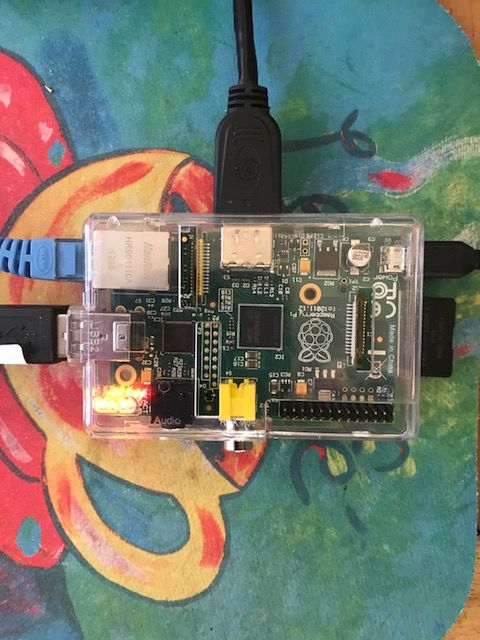

- -Physical Layout of RPi using Wireless Connection and Powered Hub
- 1-Install Pidora on SD
- Insert 8 GB class 4 or 6 SD in USB SD writer
- Type mount in root terminal /dev/sdb;/dev/sdc;/dev/sdd should appear in terminal use this value in /dev/sd(x)
- cd to directory where you have pidora-18-r2c.img (located inside folder where it was downloaded)
- 2- Write SD with dd command
[root@localhost pidora-18-r2c]# dd if=pidora-18-r2c.img of=/dev/sd(x)
3500538+0 records in
3500538+0 records out
1792275456 bytes (1.8 GB) copied, 470.625 s, 3.8 MB/s
[root@localhost pidora-18-r2c]#
- 3-Unmount SD and Place it in RPi
- 4-Boot and configure Pidora Pidora_18_Firstboot
- After reboot Pidora will pause while it resizes files on SD Card
- 5-Start Terminal and go to root
su
Password
Yum install @sugar-desktop
- 7-Full screen sugar:
- logout and log in selecting sugar
* Sugar
  Xfce
Notes
"Production of the popular Raspberry Pi computer is switching from China to south Wales."
- Coder is a free, open source project that turns a Raspberry Pi into a simple platform that educators and parents can use to teach the basics of building for the web.
- New coders can craft small projects in HTML, CSS, and Javascript, right from the web browser.
- Software Downloads: http://www.raspberrypi.org/downloads
- Fedora 18 Remix: https://fedoraproject.org/wiki/Architectures/ARM/F18/Remixes
- http://zenit.senecac.on.ca/wiki/index.php/Raspberry_Pi_Fedora_Remix_Installation
- Raspberry Hub WIKI: http://elinux.org/RaspberryPiBoard
- Good overview of RaspberryPi
- Wayland Preview:http://www.raspberrypi.org/archives/4053
- http://www.collabora.com/services/case-studies/raspberrypi
- Script: http://scotland.proximity.on.ca/raspberrypi/f17-releases/v5/latest/rpfr17-xfce-compose
- http://zenit.senecac.on.ca/wiki/index.php/Fedora_ARM_Secondary_Architecture
- element 14-Specs and Software List: http://www.element14.com/community/groups/raspberry-pi
- element14 Rpi Accessories: http://www.element14.com/community/groups/raspberry-pi-accessories?et_cid=22512767&et_rid=3810139&Linkid=Raspberry-Pi_Accessoris-Webinar-&CMP=EMC-22512767
- New 03/28/2013
- adafruit-Rpi:http://www.adafruit.com/category/105
- Pi: Operating Systems Development! Course: http://www.cl.cam.ac.uk/freshers/raspberrypi/tutorials/os/
- RPi Store: http://store.raspberrypi.com/ NEW
Write SD in a MAC:http://alltheware.wordpress.com/2012/12/11/easiest-way-sd-card-setup/
- http://zenit.senecac.on.ca/wiki/index.php/Raspberry_Pi_Fedora_Remix
- http://elinux.org/RaspberryPiBoard#Software_.26_OS_Distribution
- http://elinux.org/RPi_Distributions#What_is_armhf
"...BCM2835 used in the Raspberry Pi is the first ARM-based multimedia SoC with fully-functional,
vendor-provided (as opposed to partial, reverse engineered) fully open-source drivers,..."
- Quick Start Guide:http://www.raspberrypi.org/quick-start-guide
- http://www.raspbian.org/
- http://www.raspbian.org/RaspbianImages
- http://www.memetic.org/pre-compiled-xbmc-for-raspbian/
- http://michael.gorven.za.net/blog/2012/08/06/xbmc-packages-raspberry-pi-running-raspbian
- http://elinux.org/R-Pi_Hub
- http://elinux.org/RPi_config.txt - How to set Overclocking / Video on RPi
- http://elinux.org/RPi_Performance
- http://elinux.org/RPi_Distributions#Comparison
- RPi resolution fix:"disable_overscan=1"
- http://elinux.org/RPi_VerifiedPeripherals#Working_USB_Wifi_Adapters
- fedora 17 Remix:ftp://ftp.ges.redhat.com/raspberrypi/test-releases/raspberrypi-fedora-remix-17/
- R-PI can use three different "memory models", that is splits of the 256MB RAM
- RPi Configuration:http://elinux.org/RPiconfig
- RPi Troubleshooting
- Chromium Browser for RPi (beta)
- Update and install software before flashing .img using chroot
Projects and Courses
Kernel Testing
Kernel Compilation
raspberry-pi-root-fs-on-usb-drive
Xorg and LXDE
Mate on RPi
Testing Pages
- List of Test Pages
Testing/Reports/ARM_RPi
Tests of f18/ f17-remixes; Raspbian-PiscesMATE; and rasbian Debian on the RPi
- http://scotland.proximity.on.ca/raspberrypi/test-releases/rpfr17/
- http://www.raspbian.org/PiscesMATEImages
- http://downloads.raspberrypi.org/images/raspbian/2012-07-15-wheezy-raspbian/2012-07-15-wheezy-raspbian.zip
Testing Sweets on a RPi armhf
- Install of Sweets Sugar 0.94 on a RPi
redsleeve
"RedSleeve is different from CentOS and Scientific Linux in that it isn’t a mere clone of the upstream distribution it is based on
 – it is a port to a new platform, since the upstream distribution does not include a version for ARM."
xmbc
Gentoo
Mageia-arm
This ARM port supports the Kirkwood series from Marvell.
Most frequent are: Open-RD, computer plugs (SheevaPlug, GuruPlug).
It runs also in qemu as a virtual machine.
- Install to QEMU: http://packages.rtp-net.org/mageia/1/armv5tl/docs/README.ARMv5TL
- Prebuilt Images: http://packages.rtp-net.org/mageia/1/imgs/
- http://dx.com/p/u2-mini-android-4-0-network-multi-media-player-w-wi-fi-hdmi-tf-black-4gb-ddr-iii-1gb-145864?Utm_rid=93072394&Utm_source=affiliate
- http://www.cnx-software.com/2013/01/03/smallart-u-host-allwinner-a10-mini-pc-is-available-for-20/
arduino
CubieBoard
- "Cubieboard is a small (10x6cm), hacker friendly, extendable and very low-cost while powerful ARM board with Allwinner A10 SoC."
Getting Started
- http://linux-sunxi.org/Cubieboard
- Download:http://cubieboard.org/\
- https://fedoraproject.org/wiki/Architectures/ARM/F18/Remixes#Allwinner_A10
- http://scotland.proximity.on.ca/contrib-images/hansg/README
Pengpod
"The PengPods are a line of Linux/Android tablets and mini PCs. All devices have an Allwinner A10 or A13 processor. They are designed to run Android on their internal flash and boot Linux from an SD card for the best of both. These devices are hacker friendly and there is an active community working to make them better. You can pre-order a PengPod from our crowd funding project on Indiegogo. "
- Wiki: http://pengpod.com/pengwiki/index.php?title=Main_Page
- http://www.pengpod.com/pengstore/index.php/products/pengpods.html
- Blog:http://pengpod.com/
Software
- Download: http://pengpod.com/images/ul/
- http://pengpod.com/blog/entry/flash-card-images-for-easier-linux-flashing-of-your-pengpod
pengpod as touchscreen for solidoodle 3d printer
"I now have a fully-functional touchscreen pronterface installation that can drive the Solidoodle..."
Ubuntu images for ARM Devices
- Ubuntu 13.04 (Raring Ringtail)
PPC
- Power PC
- Ubuntu/PPC
- http://fedoraproject.org/wiki/Architectures/PowerPC
- Latest Fedora release for PPC is currently Fedora 12
- Doing builds again for fedora 16
- IRC: #fedora-ppc on irc.freenode.net
Chromebook
- http://parasense.fedorapeople.org/ new images for Chromebook 07/18/2013
- https://fedoraproject.org/wiki/Architectures/ARM/Samsung_Chromebook_2012
- Complete step by step procedure to install fedora on SD or internal ssd of Chromebook
- Linux on a Chromebook: http://blogs.arm.com/software-enablement/848-running-linux-on-the-series-3-chromebook/
- Latest: http://fedoraproject.org/wiki/Architectures/ARM/Samsung_Chromebook_2012
- U-boot:http://www.denx.de/wiki/U-Boot
- Original writeup: https://plus.google.com/109993695638569781190/posts/b2fazijJppZ
- Updated: http://people.redhat.com/wcohen/chromebook/chrome_kernel.txt 01/20/2013
- Blog Post :http://mcpierce.blogspot.com/2013/02/loading-fedora-on-samsung-chromebook.html 02/06/2013
Automated install of fedora 18
- https://www.berrange.com/posts/2013/03/31/automated-install-of-fedora-18-arm-on-a-samsung-google-chromebook/
- Writes fedora to the chromebook ssd
Fedora-17-on-samsung-chromebook-series-3-arm
- EXPERIMENTAL run Fedora 17 on Chromebook
- Note danger of blowing out the speakers.
Building your own kernel and installing it in the Chromebook
using-nv-u-boot-on-the-samsung-arm-chromebook
Recover your Chrome device
Install a new version of the Chrome operating system on your Chrome device by going through the recovery process. You may want to go through this process if you’re having problems updating your Chrome device or if your Chrome device stops working.
Fedora on a Chromebook
- NEW--Satellit 01:57, 6 December 2012 (EST)
Chrubuntu-1204
- ChrUbuntu 12.04 for the new Google Chromebook with ARM processor!
Ubuntu on Chromebook
- https://plus.google.com/109993695638569781190/posts/b2fazijJppZ
- https://sites.google.com/a/chromium.org/dev/
- http://liliputing.com/2012/10/samsungs-arm-powered-chromebook-can-run-ubuntu.html
- http://www.samsung.com/global/business/semiconductor/minisite/Exynos/products5dual.html
- http://www.tigerdirect.com/applications/SearchTools/item-details.asp?EdpNo=4917324
Debian on Chromebook
- Entering Developer Mode
"On this device, both the recovery button and the dev-switch have been virtualized.
Our partners don't really like physical switches - they cost money, take up space on the motherboard, and require holes in the case.
To invoke Recovery mode, you hold down the ESC and Refresh keys and poke the Power button.
To enter Dev-mode you first invoke Recovery, and at the Recovery screen press Ctrl-D (there's no prompt - you have to know to do it).
It will ask you to confirm, then reboot into dev-mode.
Dev-mode works the same as always: It will show the scary boot screen and you need to press Ctrl-D or wait 30 seconds to continue booting.
You'll still have to run "crossystem dev_boot_usb=1" and reboot once to boot from USB drives with Ctrl-U.
To leave Dev-mode and go back to normal mode, just follow the instructions at the scary boot screen. It will prompt you to confirm.
If you want to leave Dev-mode programmatically, you can run "crossystem disable_dev_request=1; reboot" from a root shell  .
Th ere's no way to enter Dev-mode programmatically, and just seeing the Recovery screen isn't enough -
you have to use the three-finger salute which hard-resets the machine first.
 That's to prevent a remote attacker from tricking your machine into dev-mode without your knowledge.
An unrelated note: Holding just Refresh and poking the Power button hard-resets the machine without entering Recovery.
 That's occasionally useful, but use it with care - it doesn't sync the disk or shut down politely,
 so there's a nonzero chance of trashing the contents of your stateful partition."
gitweb
Fedora
- TESTING Section
- Hope to install Fedora on it.--Satellit 02:32, 26 October 2012 (EDT)
- IRC #fedora-arm freenode
openSUSE
- IRC #opensuse-arm on freenode
- http://www.muktware.com/4655/opensuse-running-249-google-chromebook#.UIotWdEhjY5
- Detailed instructions: https://plus.google.com/u/0/109993695638569781190/posts/b2fazijJppZ
opensuse-on-arm-release-candidate-1
- http://news.opensuse.org/2012/10/01/announcing-opensuse-on-arm-release-candidate-1/
- http://download.opensuse.org/repositories/openSUSE:/12.2:/ARM:/Contrib:/Origen/images/
Cloud-OpenStack
- http://en.wikipedia.org/wiki/OpenStack
- OpenStack: https://fedoraproject.org/wiki/Test_Day:2013-04-02_OpenStack
- Latest Cloud Images:http://mattdm.fedorapeople.org/cloud-images/
SoaS in Parallels for OS X
- (experimental)
- (Not very current)