Sugar Creation Kit: Difference between revisions
m →VirtualBox Virtualization: Set up MacBook to Open items automatically when you Power it on |
|||
| Line 601: | Line 601: | ||
With [[wikipedia:VirtualBox|VirtualBox<sup>®</sup>]] one can run Sugar in a window on Microsoft Windows, Intel-based Apple Macintosh, or Linux host computers from a virtual machine (VM) window. [http://www.oracle.com/technetwork/server-storage/virtualbox/overview/index.html VirtualBox overview] | With [[wikipedia:VirtualBox|VirtualBox<sup>®</sup>]] one can run Sugar in a window on Microsoft Windows, Intel-based Apple Macintosh, or Linux host computers from a virtual machine (VM) window. [http://www.oracle.com/technetwork/server-storage/virtualbox/overview/index.html VirtualBox overview] | ||
* '''A good solution for running sugar on Macintosh computers | * '''A good solution for running sugar on Macintosh computers | ||
*[http://www.virtualbox.org/wiki/Downloads VirtualBox downloads] Windows/Linux/Intel Macs | *[http://www.virtualbox.org/wiki/Downloads VirtualBox downloads] Windows/Linux/Intel Macs | ||
*[http://www.oracle.com/technetwork/server-storage/virtualbox/downloads/index.html Oracle VirtualBox downloads] (alternate link) | *[http://www.oracle.com/technetwork/server-storage/virtualbox/downloads/index.html Oracle VirtualBox downloads] (alternate link) | ||
| Line 607: | Line 606: | ||
*[http://forums.virtualbox.org/viewforum.php?f=8 VirtualBox on Mac OS X Hosts] | *[http://forums.virtualbox.org/viewforum.php?f=8 VirtualBox on Mac OS X Hosts] | ||
*[http://www.howtogeek.com/howto/31726/mount-usb-devices-in-virtualbox-with-ubuntu/ mount-usb-devices-in-virtualbox-with-ubuntu] | *[http://www.howtogeek.com/howto/31726/mount-usb-devices-in-virtualbox-with-ubuntu/ mount-usb-devices-in-virtualbox-with-ubuntu] | ||
:: replace OSE with Virtualbox and how to set up a USB | :: replace OSE with Virtualbox and how to set up a USB-stick | ||
======'''Set up MacBook to Open VirtualBox automatically when you power it on'''====== | |||
*Open Accounts preferences | |||
:Click Add(+) button to the right of the accounts list | |||
:Select an application (VirtualBox) and click add. | |||
*Boot Mac | |||
:Mac opens directly to VirtualBox VirtualBox Manager | |||
:Pointed to VM Appliance - (the last one used) | |||
:==> Start | |||
* Now when the MacBook is powered on, it will boot up in VirtualBox pointed at the last Virtual Appliance used | |||
:'''There can be multiple VirtualBox appliances belonging to individual students/teachers to choose from.''' | |||
=====[[File:CD.png]][http://download.sugarlabs.org/images/Trisquel41_sugar_installer.iso '''Trisquel41_sugar_installer.iso''']===== | =====[[File:CD.png]][http://download.sugarlabs.org/images/Trisquel41_sugar_installer.iso '''Trisquel41_sugar_installer.iso''']===== | ||
*click above link '''^''' to download (1.1GB) | *click above link '''^''' to download (1.1GB) | ||
Revision as of 21:37, 27 December 2011
Sugar Creation Kit DVD


- Caution, this is a large file, at 3.8 GB
- A complete DVD containing all the resources required to create all 3 versions of Sugar-on-a-Stick without requiring Internet access.
Uses:
- "sneakernet" or behind firewall at school.
- save bandwidth on servers.
- download once and distribute copies locally.
Sugar Labs
- Main Sugar Labs introductory page
Get Sugar
- Main Page to Download Sugar
Chat login with list of Channels and languages
- Click this^ link to enter chat
- How to use IRC <==READ THIS FIRST
- Join Sugar chat room for Help in English (with translations to Spanish on #sugar-es)
- Sugar chat room in Español (con traducción al Inglés de #sugar)
Pida ayuda a través de este canal #sugar-es Por favor, sea cortés y hacer sus preguntas.
Los voluntarios no pueden estar en línea todo el tiempo.
Sea paciente y permanecer conectado durante varios minutos para ver su respuest
- (utilizar la función de meeting para la traducción de estos artículos)
- Ask for help on these IRC channels by clicking on either of the above links (English or Spanish)
- NOTE: there are 4 channels on IRC: #sugar; #sugar-es; #sugar-it; #sugar-de
- these channels which use MEETING to do translations between them.
- to join enter this in command line of IRC: /join #sugar-it ; /join #sugar-de
- Please be courteous and ask your questions.
- Volunteers may not be on line all of the time. Be patient and stay connected for several minutes to see their answer.
- Read the Floss Manuals first!
- Most answers can be found in them
- More about Internet Relay Chat
Communication channels
- Click this ^ link to access a page with all the means to communicate with Sugar Labs contributors and learners. It includes mailing lists, chat rooms, blogs, forums, Jabber networks, video, mail and telephone contacts.
Translator
- the translation server for Sugarlabs
- Google Translate
- Translate text files english<==>spanish
World Time Converter
Tiny URL
What is my IP
- Find your IP address
ON-LINE VERSION
- An expanded and enhanced listing of Items Included in the SugarCreationKit DVD ver 1.2.3 (see Above)
- NOTE: There are newer and additional items on this web page that are not in the SCK DVD.iso
 Use to Download the elements you need and burn to your own DVD to save Downloading all of the above SCK DVD.iso
- Look below to the References section to see how to then convert your customized DVD to an .iso
Introduction to the Sugar Interface 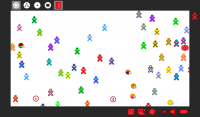

- RECOMMENDED
- linked wiki pages of Annotated Screen-shots covering these topics
-
- Introduction to the Sugar Interface
- Connecting to the Internet
- Drag-Drop
- How to use the IRC Application
- Annotated screen shots that show you how to use the IRC application
- Communicate with other sugar users and developers on IRC
- How to use the Chat application
- Annotated screen shots that show you how to use the Chat application
- A good example of collaboration on a shared activity via a jabber network
- Send a file to friend from the Sugar-Journal
- A nice way to sent a file to a friend
Introducción a la interfaz de Azúcar 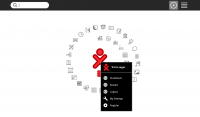

- Páginas wiki vinculado de Imágenes anotado que cubren estos temas
- Introducción a la interfaz de Azúcar
- Conexión a Internet
- De arrastrar y soltar
- Fotos de exportación
- Importación / install <activity> archivo. Xo
- Pantalla de captura de Screen capture
- Cómo usar IRC
- Tiros anotados de pantalla que muestran cómo utilizar la aplicación de IRC
- Cómo usar Chat
- Tiros anotados de pantalla que muestran cómo utilizar la aplicación de Chat
- traducciones a través de http://translate.google.com/#auto%7Ces%7C Por favor, haga las correcciones por errores en la wiki
 introduction to the sugar interface (CD.iso)
- Download-able 7.4M CD.iso file.
- This is a set of Annotated screen shots as Web Page.html files with the accompanying folder containing the files for the .html
- A useful set of Web pages for students/teachers to learn the details of how to use the Sugar-Desktop.
- Intended to be run from a 2nd USB (or CD) where there is NO Internet Connection Available.
- Click here for Details
Introduction to Sugar on a Stick
 Sugar on a Stick (SoaS)
Burn a SoaS.iso to a CD and Boot with the resulting CD
 Sugar on a Stick v6 Pineapple
- click link ^
- Current Version released 11/09/2011
- Direct Download: http://spins.fedoraproject.org/soas/#downloads
- Soas-Booting_EFI_USB for MacBook Pro
 Sugar on a Stick v5 Coconut
- download Coconut (32-bit build)
- download Coconut (64-bit build)
- (Burn the .iso to a CD and Boot with the resulting CD)
- Final Version released 10/09/2011
 Sugar on a stick v4 Mango Lassi
- download Mango Lassi (32-bit build)
- download Mango Lassi (64-bit build)
- (Burn the .iso to a CD and Boot with the resulting CD)
- Activities Compatible with Mango Lassi & Mirabelle
- Editable Listing of Activity Compatibility ASLOxo Activity Test Table
- Please Use this wiki page to report your findings
 Sugar on a stick v3 mirabelle
 Sugar on a stick v2 Blueberry
 Sugar on a stick v1 Strawberry
Spins Archives
- Sugarlabs Archive to download Mirabelle and earlier SoaS versions
- Fedora 13 Spins Archive
- Fedora 14 Spins Archive
- Fedora 15 Spins Archive
- Download Latest Fedora SoaS
- (Burn the .iso to a CD and Boot with the resulting CD)
Nightly Composes
- These will not always work. FOR TESTING ONLY
- Latest Nightly Composes
- Testing of nightly spins Testing of Fedora Nightly Composes
Fedora Mirrors List
- http://mirrors.fedoraproject.org/mirrorlist?path=pub/fedora/linux/releases/15/Fedora&country=global
- http://mirror.bytemark.co.uk/fedora/linux/releases/
Hardware Compatibility
- EeePC: http://fedoraproject.org/wiki/EeePc
- key-to-press-to-access-bios-for-various-oem-and-computer-systems
SoaS Installation variations
- A collection of install methods
Category:Live USB
^
- A collection of links on how Live USB's are used in different distributions
A-Non-Live (real file structured) USB
- This is an example of a dd writable SoaS-v2.img file which produces a fully functional Conventional install on a USB. This is equivalent to a liveinst install to USB.
- It was first suggested by bernie in early 2010 as a better alternative to the currently used live USB SoaS filesystems with their fragile and limited sized overlay,
- This functionality is expected to be included in fedora 17 liveinst (Anaconda)
- This can also be realized by entering "liveinst" in root sugar terminal
- (Anaconda installer which installs to the USB with a normal install)
- Use "custom" format option with /boot ext4 and / ext4 and no swap for a USB.
- This requires approximately 2 times as large a USB (4GB minimum) as it is not a compressed file system and an overlay
Notes on Live File Systems
- LiveOS image
- This page shares some information about the LiveOS design that helps Sugar on a Stick Learners make better use of their disc resources.
- Clarify writing ISO to USB
- (Discussion on what is supported in fedora)
- https://fedorahosted.org/fedora-qa/ticket/134
- Technical Discussion of Live USB's: http://fedoraproject.org/wiki/How_to_create_and_use_Live_USB#Data_Persistence
- Limited Lifetime of Persistent Overlay
One very important note about using the "primary" persistent overlay for system changes is that due to the way it's currently implemented (as a LVM copy-on-write snapshot),
every single change to it (writes AND deletes) subtracts from its free space, so it will eventually be "used up" and your USB stick will no longer boot.
Because of these limitations, it is advisable to use the system-level persistence sparingly, for configuration changes and important security updates only.
For a truly persistent write-many (vs write-once) overlay, use the --home-size-mb option to create a home directory filesystem image for personal files.
Unlike the primary system overlay image, the home.img can be re-used and loop mounted outside of the liveusb environment.
Cautions with u3 USB sticks
- USB sticks with u3 partition will not boot with liveusb-creator
- CAUTION: Formatting the USB-stick will not remove the hidden (virtual CD-ROM drive)
- How to remove hidden u3 partition
- Linux: http://u3-tool.sourceforge.net/
- Windoz: Insert u3 Stick then click on tray icon for u3; select delete u3 partition, once it is deleted the USB-stick will work with liveusb-creator
- http://en.wikipedia.org/wiki/U3
Commercial source of SoaS-loaded media
- USB Flash Drives: -4gb-8gb-16gb-32gb (32 and 64-bit PC)
- http://www.osdisc.com/cgi-bin/view.cgi/products/usb/fedora
- http://www.osdisc.com/cgi-bin/view.cgi/products/usb/fedora/fedora-16-sugar-on-a-stick-4gb-usb-flash-drive-pc.html
- Note: Ordered One. In testing; It is Not Persistent -satellit_ 6 December 2011
- Long Delay on shutdown as it is "waiting for the CD to be removed from the Drive"
- Visible if you hit <esc> on shutdown
- Note: Ordered One. In testing; It is Not Persistent -satellit_ 6 December 2011
- SDHC Flash Cards: -2gb-4gb-8gb-16gb-32gb (32 and 64-bit PC)
- http://www.osdisc.com/cgi-bin/view.cgi/products/usb/fedora/fedora-16-sugar-on-a-stick-4gb-sdhc-flash-card-pc.html
- - see listing on site for more -
WiFi
- Wifi (Open FirmWare for WiFi networks): http://www.ing.unibs.it/~openfwwf/
- http://www.h-node.com/wifi/view/en/2/BCM4311--rev-02-/1/1/Broadcom/undef/undef/undef/undef
- http://linuxwireless.org/en/users/Drivers/b43#Known_PCI_devices
- http://www.h-node.com/wifi/catalogue/en/1/1/undef/undef/yes/undef/undef
- http://www.h-node.com/wifi/catalogue/en/1/1/undef/undef/yes/USB/undef
- Mesh Networking: http://hothardware.com/News/Nonprofit-Group-Releases-Open-Source-WiFi-Software/
Community Distributions Complete Listing
| ← Introduction to the Sugar Interface | ' | VirtualBox Appliances → |
- Shown here are Linux distributions where sugar is used:
 Fedora F13 SoaS, F14 SoaS, f15-gnome3-shell and sugar0.92.1 How to install Sugar packages
 Trisquel Tris 4.0 (Ubuntu 10.04LTS); Tris 4.5 (Ubuntu 10.10); Tris 4.5.1-sugar(Ubuntu 10.10); Tris 5.0 and 5.0-Sugar (Ubuntu 11.04)
 Mandriva 2010.2 Mandriva Sugar 0.88.0
 Mageia-2-alpha1 Sugar 0.95.1 - (no browser except for firefox-6.xo install)
 Debian Debian 6 Sugar 0.88.1; 0.86; 0.84
 Linux Mint Debian Debian 6 Sugar 0.88.1
 Caixa Mágica based on Mandriva 2010.1 repositories Sugar 0.88.0
 Ubuntu sweets sugar 0.88.1 or 0.94.1 (and Mint 11)
 openSUSE
 tuquito NEW Community Distribution based on Ubuntu 10.10
 Sugar on a Stick (SoaS) Download earlier SoaS versions
 USB SoaS-v5 and SoaS-v6 .img files to write to USB with dd (PC and Mac)

ASLOxo-6
- New: Updated activities through 12/06/2011
- http://download.sugarlabs.org/images/ASLOxo6-2.iso 2.2 GB (DVD)
- http://download.sugarlabs.org/images/ASLOxo6.2-Contents.txt] ASLOxo-6-2 Contents Listing of Activities on DVD
- Activities.xo files to be drag-dropped into the Sugar Journal from the DVD to install them.
- "sneaker net"- Download one time and have an off-line library of Sugar-activities on hand.
- Suggestion: copy the ones you want from the DVD to a 2nd USB-stick and use it to drag-drop install a custom suite of activities to Sugar.
 Activities
Click link ^ for more details
- Activites Download Page - ASLO - listed on top bar of every wiki page
- OLPC listings: Activities
- OLPC AU: Activities_OLPCAU_10.1.3
- Recursos_en_espanol Los siguientes recursos han sido creados por personal de distintos deployments de America Latina y otros colaboradores.
- FileShare is an activity that allows the user to share files from their journal.
- Note small files can be posted to sites like pastebin for sharing
logo
- Book: Challenging Programs in Logo
surf browser
- alternate to sugar-browse
- Included in latest f15 sugar 0.92.1 as the main web browser
- Works in situations where sugar-browse will not start
- Download: http://people.sugarlabs.org/Tgillard/Surf-115.xo
- git: http://git.sugarlabs.org/surf
- WebKit Development: http://wiki.sugarlabs.org/go/Features/WebKit
Razor-qt Desktop
- Razor-qt is an open source and free project. GPL and LGPL
- Blog Post:http://yarpen.cz/rants/?p=43
- http://www.qtdesktop.org/
- http://sharemenot.cs.washington.edu/ MIT license
ShareMeNot is a Firefox add-on designed to prevent third-party buttons
(such as the Facebook “Like” button or the Twitter “tweet” button)
embedded by sites across the Internet from tracking you until you actually click on them.
DVD covers; artwork & screenshots
- sugarlabs_SoaS-Creation-Kit_avery_cd_label_2up.pdf http://people.sugarlabs.org/Tgillard/sugarlabs_SoaS-Creation-Kit_avery_cd_label_2up_Mirabelle.pdf
- sugarlabs_Sugar-demo_avery_cd_label_2up.pdf http://people.sugarlabs.org/Tgillard/sugarlabs_Sugar-demo_avery_cd_label_2up_Mirabelle.pdf
- Flyer_englisch.pdf *http://people.sugarlabs.org/Tgillard/Flyer_englisch.pdf (Poster-Sugar Learning Program; 2-sided with text from past Show)
- Booth_Banners Marketing Team/Booth Banners
- LinuxTag http://www.flickr.com/photos/39656470@N02/sets/72157620524327203/ SeanDaly
- F16 Artwork: https://fedoraproject.org/wiki/F16_Artwork/Submissions/Banners#Release_Banner_.28small.29_SubmissionsFedora
- Screen Shots Marketing Team/Screen Shots
- Marketing Team/T-Shirt nice collection of images
- Fedora 15 GNOME 3 Desktop with sugar-emulator: Community/Distributions/Fedora#GnomeShell
 Floss Manuals
(Important Manuals on how to use Sugar Applications and Features)
- READ THESE FIRST!
- (Local ARCHIVE of the.pdf files shown below:)
- Source Links:
- Introduction to Sugar http://en.flossmanuals.net/sugar
- NEW:como-hacer-una-actividad-sugar
- MakeYourOwnSugarActivities Internet Archive Publishing Quality
- In PDF, EPUB, Kindle, Daisy, Full Text. DjVu formats
- MakeYourOwnSugarActivities-es with corrected index
- What is Sugar http://people.sugarlabs.org/Tgillard/floss_manuals/What_is_Sugar_28Oct08.pdf
- Browse http://people.sugarlabs.org/Tgillard/floss_manuals/Browse_06Sep08.pdf
- Chat http://people.sugarlabs.org/Tgillard/floss_manuals/Chat_09Sep08.pdf
- Collaboration http://people.sugarlabs.org/Tgillard/floss_manuals/Collaboration_31Jan10.pdf
- SugarCollaboration http://en.flossmanuals.net/ActivitiesGuideSugar/SugarCollaboration
- FunWithTheJournal http://people.sugarlabs.org/Tgillard/floss_manuals/Fun_with_the_journal_09Nov10.pdf
- Linux Command Line http://people.sugarlabs.org/Tgillard/floss_manuals/Linux-command-line_16Apr09.pdf
- ActivitiesGuideSugar-English http://people.sugarlabs.org/Tgillard/floss_manuals/Activitys_Guide-sugar_en_09Nov10.pdf
- Record http://people.sugarlabs.org/Tgillard/floss_manuals/Record_06Sep08.pdf
- The Terminal http://people.sugarlabs.org/Tgillard/floss_manuals/Terminal_06Sep08.pdf
- Turtle Art http://people.sugarlabs.org/Tgillard/floss_manuals/TurtleArt_06Sep08.pdf
- Write http://people.sugarlabs.org/Tgillard/floss_manuals/Write_27Sep08.pdf
- Reading_and_sugar: http://people.sugarlabs.org/Tgillard/floss_manuals/Reading_and_sugar_28Sep10.pdf
- Text to Speech: http://people.sugarlabs.org/Tgillard/floss_manuals/Text_and_Speak_09Nov10.pdf
- e-book resources:http://en.flossmanuals.net/e-book-enlightenment/
- MakeYourOwnSugarActivities Internet Archive Publishing Quality
Sugar_manual
- Nice wiki page:http://wikieducator.org/User:Vtaylor/Sugar_manual
Replacing_Textbooks - Booki
- Booki
Khan Academy videos in OGV format
^
- Re: [IAEP] Khan academy content 04/05/2011
You can download around 1000 of the Khan Academy videos in OGV format
(playable on XO laptops) from Archive.org   Here's an English/Spanish
index of relevant categories
If you're skeptical or haven't seen his videos, his talk sparked a great
discussion about math education on Hacker News:
http://news.ycombinator.com/item?id=2307532

For more recent videos, including YouTube, there's this media guide:
http://wiki.laptop.org/go/MediaGuide

Regards,
Nick Doiron
Adobe Flash
- a proprietary player for Flash media
Flash Player
- needed for firefox viewing of Khan academy lectures
Gnash
- GNU Flash movie player and as a plugin to Browse is the default Flash player on the XO. It is the free software counterpart to the Adobe Flash player.
Flash Video Replacer
References
How to make your own custom Sugar-Creation_Kit.iso file
- (How this DVD was converted to an .iso file)
- Collect, annotate and sort the files you want in a folder on your Desktop.
- Burn the contents of this folder to a CD or DVD.
- Use the following command in Terminal as the root user:
dd if=/dev/sr0 of=Sugar-Creation-Kit.iso
- /dev/sr0 is the device name for your DVD/CD drive
- Sample output:
 dd if=/dev/sr0 of=Sugar-Creation-Kit.iso
 5555584+0 records in
 5555584+0 records out
 2844459008 bytes (2.8 GB) copied, 232.86 s, 12.2 MB/s
- the resulting .iso file can be sent over the internet or used to make copies by burning to a DVD
Drag-Drop to Import and Export items from the sugar-journal
- make a screen-shot
- import/export files from the sugar-journal from a 2nd USB-stick
- install an <activity>.xo file from a 2nd USB-stick
Guide to GNOME 3 desktop
- Gnome IRC Channels
pulseaudio-fixes-and-workarounds
How to Sugarize an Application
- Instructions on how to make a program appear in the (F3) Home view of Sugar as an icon
FSF-How to choose a license for your own work
how-to-mount-and-access-files-in-an-iso-image-on-linux
grub and grub2
how to recover grub and grub2 after installing windows
Download Methods
There are many alternative methods to install Sugar. The options can be very confusing because of the technical details and features that may be unfamiliar.
This page begins to itemize some of the many options that are available for those interested in learning more about the possibilities.
The Undiscoverable
- (The Undiscoverable Features of Sugar)
- Features and tips not easily discovered about using Sugar
HTMLDOC
HTMLDOC software, version 1.8.27. HTMLDOC converts Hyper-Text Markup Language ("HTML") input files
into indexed HTML, Adobe® PostScript®, or Adobe Portable Document Format ("PDF") files.
Converting Mediawiki files to DocBook.XML
E-books
- Education Team/Creating textbooks
- Reading And Leading With One Laptop Per Child http://en.flossmanuals.net/ReadingandSugar/Introduction
- http://en.flossmanuals.net/e-book-enlightenment/
- calibre e-book reader:http://calibre-ebook.com/about
- calibre is a free and open source e-book library management application developed by users of e-books for users of e-books
Graphic installers
Liveusb Creator
- Instructions on how to load a Live USB device in Windows, GNU/Linux, and Intel Mac's.
- An easy method for Fedora and Windows, however this method does not generate a separate home.img filesystem to conserve the exhaustible OS overlay (see LiveOS image), nor does it copy the livecd-iso-to-disk installation script to the new device to permit generation of a new Live USB device from the first.
- Note if graphical liveusb-creator program will not make a bootable USB-stick from an .iso file:
- (This can happen if the stick is formatted to fat16 on another PC with a different Operating System.)
- Use terminal command :
liveusb-creator --reset-mbr
- USB-stick must be formatted: fat16/32; Labeled=LIVE; boot flag set.
- (The LIVE label is only required when the device is to be used for a subsequent uncompressed installation to a hard disk.)
- how to create and use liveusb-creator fedora:FedoraLiveCD/USBHowTo
- fedora:How to create and use Live USB#Graphical Method - Windows or Fedora
- Liveusb-creator https://fedorahosted.org/liveusb-creator/
UNetbootin
- Does not make persistent USB-sticks
- unetbootinwindows471.exe for windows
- unetbootinlinux471
- UNetbootin
- (Advanced) UNetbootin Command line
- How to Make a 2GB Installer USB with UNetbootin
LiLi USB Creator
- Unable to test satellit_ 5 December 2011
- For Windows 7, Vista, XP
- GPL3
- Makes a persistent USB from
Ubuntu, Fedora, Debian, OpenSUSE, Mint, Slax, CentOS, ArchLinux, Gentoo, PCLinuxOS, Sabayon, BackTrack, Puppy Linux ...
many-linux-tux
- http://www.linuxliveusb.com/en/help/guide Users Guide
- http://www.linuxliveusb.com/en/supported-linuxes
- http://www.linuxliveusb.com/en/download Download
pendrivelinux
- usb-installs-from-linux How to Do it Information
- universal-usb-installer-easy-as-1-2-3 Windows
- boot-multiple-iso-from-usb-via-grub2-using-linux linux (Advanced)
- boot-a-usb-flash-drive-in-virtualbox VirtualBox
Expert install methods
- Use livecd-iso-to-disk script to write a live USB Sugar on a Stick/Linux, Fedora page
Use "dd" command
- For ADVANCED USERS ONLY.
- to make an install USB from a liveCD .iso file
- Also see: openSUSE dd to USB with persistence
- Great for netbooks
- Use (live).iso and terminal to make bootable USB
- Use to install to HD or USB without needing a DVD/CD ROM
Building a bootable Mac USB
- (tested on a MacBook Air)
Boot Helper CD's
- MAC SoaS-3 Mirabelle Boot DISK
- soas-3-boot-test.iso (Burn this to a CD and boot with it)
- Read Me First & Credits to Programmer
- MAC SoaS-4 Mango Lassi Boot DISK
- soas-4-boot-test (Burn this to a CD and boot with it)
- rEFIt
- rEFIt
- burn a bootable rEFIt CD on Mac OS X Used to Boot live USB's in a Mac
rEFIt is a boot menu and maintenance toolkit for EFI-based machines like the Intel Macs.
You can use it to boot multiple operating systems easily, including triple-boot setups with Boot Camp.
It also provides an easy way to enter and explore the EFI pre-boot environment.
Backup and Restore
Sugar-journal
- Backup (Activity) http://activities.sugarlabs.org/en-US/sugar/addon/4326
- Restore (Activity) http://activities.sugarlabs.org/en-US/sugar/addon/4327
everything but the sugar-journal
- deja-dup-backupdeja-dup-backup
QEMU Virtualization
- In Gnome terminal:
su
yum install @virtualization
- Start (Graphical): Applications/System Tools/Virtual Machine Manager
- installs soas.iso files to VM HD (with liveinst command in terminal of running Virtual Machine)
BoxGrinder
- BoxGrinder creates appliances (also called images) from simple plain text Appliance Definition files.
- http://boxgrinder.org/tutorials/boxgrinder-build-meta-appliance/
- http://boxgrinder.org/download/boxgrinder-build-meta-appliance/
VMware Player Virtualization
- click this link ^ for more details and examples
- requires registering first but free.
VMware Player Appliances
- DEPRECIATED
- VMware Player 4.0 will now work with exported Virtual Box appliances (see Below)
- It still works with the compressed VMware Player files below
- VMware Player appliance of SoaS-v3-Mirabelle
- Compressed in .zip file
- Download
- This appliance is ready to run "firstboot" (agree/user name/password/tz/etc)
- sugarroot is the root password.
- VMware Player appliance Trisquel-3 (NEW) 01/05/2011
- Compressed in .zip file
- download
- User=sugar
- Password=sugaruser
- VMware Player appliance Trisquel-4+sugar (NEW) 01/05/2011
- Compressed in .zip file
- download
- User=sugar
- Password=sugaruser
- VMware Player appliance Sugar on a Stick v2 (Blueberry)
- VMware Player appliance of openSUSE-Sugar
VirtualBox Virtualization
- click this link ^ for more details and examples.
- scroll down on this page for RECOMMENDED Sugar Appliances
With VirtualBox® one can run Sugar in a window on Microsoft Windows, Intel-based Apple Macintosh, or Linux host computers from a virtual machine (VM) window. VirtualBox overview
- A good solution for running sugar on Macintosh computers
- VirtualBox downloads Windows/Linux/Intel Macs
- Oracle VirtualBox downloads (alternate link)
- Installing on Linux hosts Read this if VirtualBox does not install.
- VirtualBox on Mac OS X Hosts
- mount-usb-devices-in-virtualbox-with-ubuntu
- replace OSE with Virtualbox and how to set up a USB-stick
Set up MacBook to Open VirtualBox automatically when you power it on
- Open Accounts preferences
- Click Add(+) button to the right of the accounts list
- Select an application (VirtualBox) and click add.
- Boot Mac
- Mac opens directly to VirtualBox VirtualBox Manager
- Pointed to VM Appliance - (the last one used)
- ==> Start
- Now when the MacBook is powered on, it will boot up in VirtualBox pointed at the last Virtual Appliance used
- There can be multiple VirtualBox appliances belonging to individual students/teachers to choose from.
Trisquel41_sugar_installer.iso
- click above link ^ to download (1.1GB)
- This DVD.iso is a great way to "SneakerNet" distribute this VM Appliance
- Revised 03/02/2011 to remove sugar identity
- RECOMMENDED
- Contents of DVD:
- Instructions and .vmdk/.ovf files to import
32bit-VirtualBox Installers (OSE) (Directory with install files for VirtualBox 4.0.4)
(Does not include Free for Personal Use licensed extension pack) - includes instructions on how to download for personal use.
ReadMeFirst_Install_Instructions.pdf  (Instructions-how to install VirtualBox and import appliance)
trisquel-sugar-4.1-i686-feb18.ovf
trisquel-sugar-4.1-i686-feb18-disk1.vmdk
UserManual.pdf (VirtualBox 4.0.4 User Manual-269 pages)
- Cleared of Sugar Learner identity. Starts on color selection screen (Click the <===(back) button to change the Learner name.)

 All Prebuilt VirtualBox Appliances
- click this link ^ to see a complete list of available VirtualBox Appliances
| ← Introduction to the Sugar Interface | ' |
- Try the appliances listed below first.
- they are listed with the Recommended version first and older ones below.
- Where we need to simplify We need a simple, elegant, Sugar specific UI that is presented to the user when they insert a stick into a running Windows machine.
- Suggestion-1:
- Download the 2 files for VirtualBox import to a 2nd USB stick
- On insertion; the contents of the USB stick pop up
 An example:
 f16-live-RC4-Desktop-sugaruser-disk1.vmdk
 f16-live-RC4-Desktop-sugaruser.ovf <==click on this file and it immediately imports into VirtualBox (less than 2 Minutes)
 (Only the .ovf file icon is highlighted in the USB stick contents)
- Suggestion-2:
- Export the VirtualBox .vdi hard drive to a 2nd USB and create a new machine that uses the .vdi to run
- /home/(user)/VirtualBox VMs/ (copy all three files to USB-stick)
- Create a new appliance
- use pre-existing hard disk
- Look for .vdi (on USB-stick)

- click on image ^ to enlarge
- Use your browser (back) <== arrow to return here
- This is OS agnostic for a system with an installed VirtualBox 4.1
Trisquel-5.0-sugar

- RECOMMENDED
- Sugar Desktop ONLY
Trisquel 5.0 is based on the previous Ubuntu release, 11.04 Natty Narwhal.
- Sugar 0.94.1
- More Info: TOAST
- download and import 2 files:
- autologon
- starts at color selection
- use <==(Back) to change name
- Auto logon
- enter password on restart
- User = sugar
- password = sugaruser
- 4-GB Virtual Box hard disc
- English and English keyboard
- USA-Los Angeles (Pacific timezone)
Trisquel-4.1-sugar
- Sugar Desktop ONLY
- Ubuntu 10.04 LTS with Sugar sweets 0.88.1
- download and import 2 files:
- Cleared of sugar identity; Starts on Color Selection Screen ( <===(back) to change/ customize name)
v6 Pineapple
- RECOMMENDED
- firstboot has not yet run; so a new user name and password will be set for the gdm login on startup for the first time
- Built 11/13/2011 with Virtualbox 4.1.4 for OSX
- How Built:
- root=sugarroot
- 4-GB VirtualBox hard disc
- English and English keyboard
- USA-Los Angeles (Pacific timezone)
- download and import 2 files:
http://download.sugarlabs.org/images/VirtualBox/F16-i686_SoaS_CL.ovf
http://download.sugarlabs.org/images/VirtualBox/F16-i686_SoaS_CL-disk1.vmdk
v5 Coconut
- firstboot has not yet run; so a new user name and password will be set for the gdm login on startup for the first time
- Built 10/10/2011 with Virtualbox 4.1.4 for OSX
- How Built:
- root=sugarroot
- 8-GB VirtualBox hard disc
- English and English keyboard
- USA-Los Angeles (Pacific timezone)
- download and import 2 files:
http://download.sugarlabs.org/images/VirtualBox/Soas_Coconut_i686_CL.ovf
http://download.sugarlabs.org/images/VirtualBox/Soas_Coconut_i686_CL-disk1.vmdk
v3 Mirabelle
- firstboot has not yet run; so a new user name and password will be set for the gdm login on startup for the first time
- How Built:
- root=sugarroot
- 8-GB VirtualBox hard disc
- English and English keyboard
- USA-Los Angeles (Pacific timezone)
- download and import 2 files:
http://download.sugarlabs.org/images/VirtualBox/Fedora-13-i686-Live-SoaS-sugaruser.vmdk 533M
http://download.sugarlabs.org/images/VirtualBox/Fedora-13-i686-Live-SoaS-sugaruser.ovf   12K
 v2 Blueberry
- READ FIRST: http://people.sugarlabs.org/Tgillard/soas-2-blueberry_ovf_README_FIRST.txt
- Download these three files:
http://people.sugarlabs.org/Tgillard/soas-2-blueberry.vmdk
http://people.sugarlabs.org/Tgillard/soas-2-blueberry.ovf
http://people.sugarlabs.org/Tgillard/soas-2-blueberry.mf
SoaS-remix
SoaS-remix is a bundle of edit-liveos.py and supporting scripts to make testing and use easier. The bundle will change with development. As of 10 February 2011 it contains,
- edit-liveos.py - the primary remix builder
- liveos-disk-to-iso - a Bash launcher script for edit-liveos.py
- fs2.py, live2.py, creator2.py - temporary modules from livecd-tools with pending squashfs-compression_type() functionality
Get the SoaS-remix bundle:
Sugar on a Stick/Sugar Clone
- customize or duplicate Live USB installations
- (script files for making a customized Live USB installation self-replicating)
- Update: http://www.mail-archive.com/soas@lists.sugarlabs.org/msg02044.html
- Rebuild/Refresh a custom SoaS iso from a running stick
Possible Use Cases
(from Wiki Page)
- Curriculum packaging
  1. A teacher wants to prepare a SoaS image with a custom set of installed Activity bundles or a Journal of Activity instances for an upcoming class term.
  2. The teacher modifies their current working image by adding or deleting Activity bundles from their Home view and adding or removing Journal entries with specific content
   (such as a Physics model template or Etoys project), even saving distributable ebooks, or bookmarks in Browse Activity instances that are named for specific sets of local web destinations
   (a class portal perhaps for deployments lacking Internet connectivity).
  3. The teacher scrubs out any personal passwords or other history that should not be shared in the new copies.
  4. A fresh or recycled USB stick is inserted into the computer running the customized SoaS image and the SugarClone script is executed.
- Full image backup or sharing
  1. A Learner has modified their environment, perhaps adding Activity bundles and prepared specific instances such as a Activities/Physics simulation.
  2. Their modifications include changes to their operating system installed through yum or RPM to obtain some new core functionality.
  3. The Learner wants to archive or share this image with friends or for a backup.
  4. Personal or private information is scrubbed from the Journal or Browse history and other potential stores.
  5. The User creates one or more Sugar Clones.
This method of backup has the advantage that it copies Learner changes to the core operating system as well as the Journal. A LiveOS image using a separate persistent home folder could be partially cloned with either the operating system overlay or home folder without the other should that be desired.
SoaS in Parallels for OSX
- (experimental)
PPC
- Power PC
- Community/Distributions/Ubuntu/PPC
- http://fedoraproject.org/wiki/Architectures/PowerPC
- Latest Fedora release for PPC is currently Fedora 12
- Doing builds again for fedora 16
- IRC: #fedora-ppc on irc.freenode.net
OLPC/Sugar as Webserver
- copied from Inkyfingers
- Open Terminal and type the following to install Boa (approx. 100k)
su -
yum -y install boa
- Now put your index.html in /var/www
- Find your Sugar Computer/XO's IP Address. Still as root user (having entered su- already), enter into Terminal:
ifconfig
- Look next to eth0 for 192.168.whatever (for example)
- Go to another machine on your LAN and type your Sugar Computer/XO's IP Address into your browser. There's your Sugar computer serving up a web page!
Build Your Own Remix with Fedora
- Advanced - RECOMMENDED
- Make your own Custom CD/DVD.iso with a customized kickstart file
- Remixes using rpm fusion: http://fusionlinux.org/2011/11/01/pre-release-remixing/
- Links to Trisquel, Debian and Mandriva on how to remix Live CD's
- http://trisquel.info/en/wiki/customizing-trisquel-iso
- http://wiki.debian.org/DebianCustomCD
- http://wiki.mandriva.com/en/Draklive
- Ubuntu: https://help.ubuntu.com/community/LiveCDCustomizationFromScratch
- Debian: http://wiki.debian.org/Simple-CDD
Advanced Topics
- Advanced Methods and Notes
| ← Introduction to the Sugar Interface | ' | VirtualBox Appliances → |