Activities/Turtle Art/Getting started: Difference between revisions
< Activities | Turtle Art
Tonyforster (talk | contribs) |
Tonyforster (talk | contribs) |
||
| Line 38: | Line 38: | ||
File:TA-text.png|'show' block used to display text | File:TA-text.png|'show' block used to display text | ||
File:Printnumber.jpg|'print' and 'show' can display numbers including results of calculations | File:Printnumber.jpg|'print' and 'show' can display numbers including results of calculations | ||
File:Stringsandnumbers.jpg|'print' | File:Stringsandnumbers.jpg|'print' or 'show' text and numbers, ('+' also joins text) | ||
File:TA-image.png|'show' an image or video | File:TA-image.png|'show' an image or video | ||
File:Showcamera.jpg|'show' the camera output | File:Showcamera.jpg|'show' the camera output | ||
Revision as of 19:43, 1 March 2011
Getting Started

Start by clicking on (or dragging) blocks from the Turtle palette. Use multiple blocks to create drawings; as the turtle moves under your control, colorful lines are drawn.
You add blocks to your program by clicking on or dragging them from the palette to the main area. You can delete a block by dragging it back onto the palette. Click anywhere on a "stack" of blocks to start executing that stack or by clicking in the Rabbit (fast) , Turtle (slow) or Bug (debug) buttons  on the Project Toolbar.
The basics
-
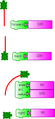 Basic turtle graphics: 'forward', 'back', 'arc', and 'right' blocks
 -
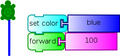 The 'set color' block affects pen trails, fill and text
 -
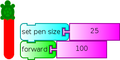 'set pen size' block
 -
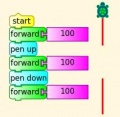 'pen up' and 'pen down'


Drawing shapes
-
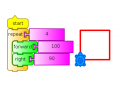 Use the 'repeat' block to draw shapes
 -
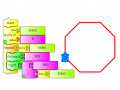 This can be generalised to n sided polygons, n is stored in 'box 1'
 -
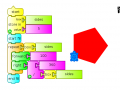 Use 'start fill' and 'end fill' to draw filled shapes


Boxes, Stacks and the Heap
(aka variables, subroutines and the stack)
-
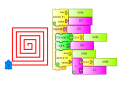 Named variables: 'store in' block
 -
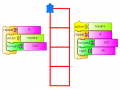 Named 'stacks' of blocks can be reused
 -
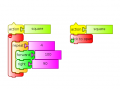 Collapse a 'stack' of blocks to save space
 -
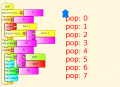 Store data in the first in last out heap using 'push' and 'pop'
 -
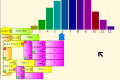 Box names (and stack names) can be boxes, in this case 10 boxes are created. This is a powerful programming feature. A one dimensional array of variables has effectively been created.


Displaying things
-
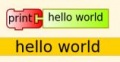 Using 'print' with text
 -
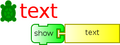 'show' block used to display text
 -
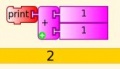 'print' and 'show' can display numbers including results of calculations
 -
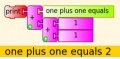 'print' or 'show' text and numbers, ('+' also joins text)
 -
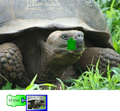 'show' an image or video
 -
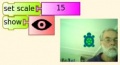 'show' the camera output
 -
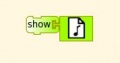 'show' plays sounds as well
 -
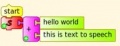 Text to speech. Load the Python block with the inbuilt sample code speak.py


Keyboard, mouse and sensor input
-
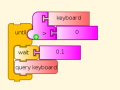 Reading the keyboard
 -
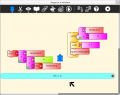 Converting the keyboard output to a string
 -
![Entering a multi digit number, exits with the number in 'box 1',(enter = 13 terminates) [[1]]](/images/thumb/8/8a/Entertermnumber.jpg/120px-Entertermnumber.jpg.png) Entering a multi digit number, exits with the number in 'box 1',(enter = 13 terminates) [[1]]
Entering a multi digit number, exits with the number in 'box 1',(enter = 13 terminates) [[1]] -
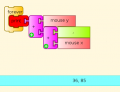 Load the Python block with the sample code push_mouse_event.py to read mouse events
 -
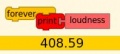 Read the microphone
 -
![Read sensors plugged into the microphone socket [2]](/images/thumb/a/a0/Resistance.jpg/120px-Resistance.jpg) Read sensors plugged into the microphone socket [2]
Read sensors plugged into the microphone socket [2]


![Entering a multi digit number, exits with the number in 'box 1',(enter = 13 terminates) [[1]]](/go/File:Entertermnumber.jpg)


![Read sensors plugged into the microphone socket [2]](/go/File:Resistance.jpg)
Mathematics
-
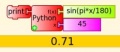
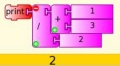 Math operators including + - * / mod sqrt
 -
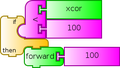 Logical operations: flow control blocks accept > < = and not or as input
 -
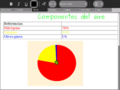 Make pie charts with 'setxy', 'arc' and 'fill'
 -