File list
This special page shows all uploaded files.

| Date | Name | Thumbnail | Size | User | Description | Versions |
|---|---|---|---|---|---|---|
| 19:11, 15 April 2026 | Chart gsoc SL.jpg (file) |  |
33 KB | Walter (talk | contribs) | 1 | |
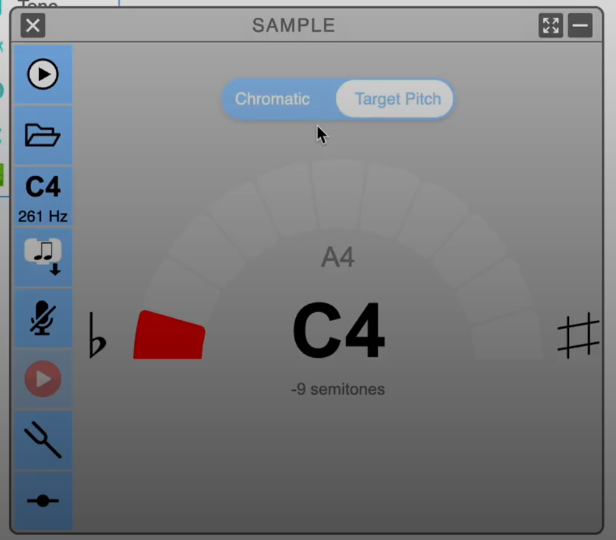
| 07:45, 26 June 2025 | Tuner.png (file) |  |
76 KB | Walter (talk | contribs) | 1 | |
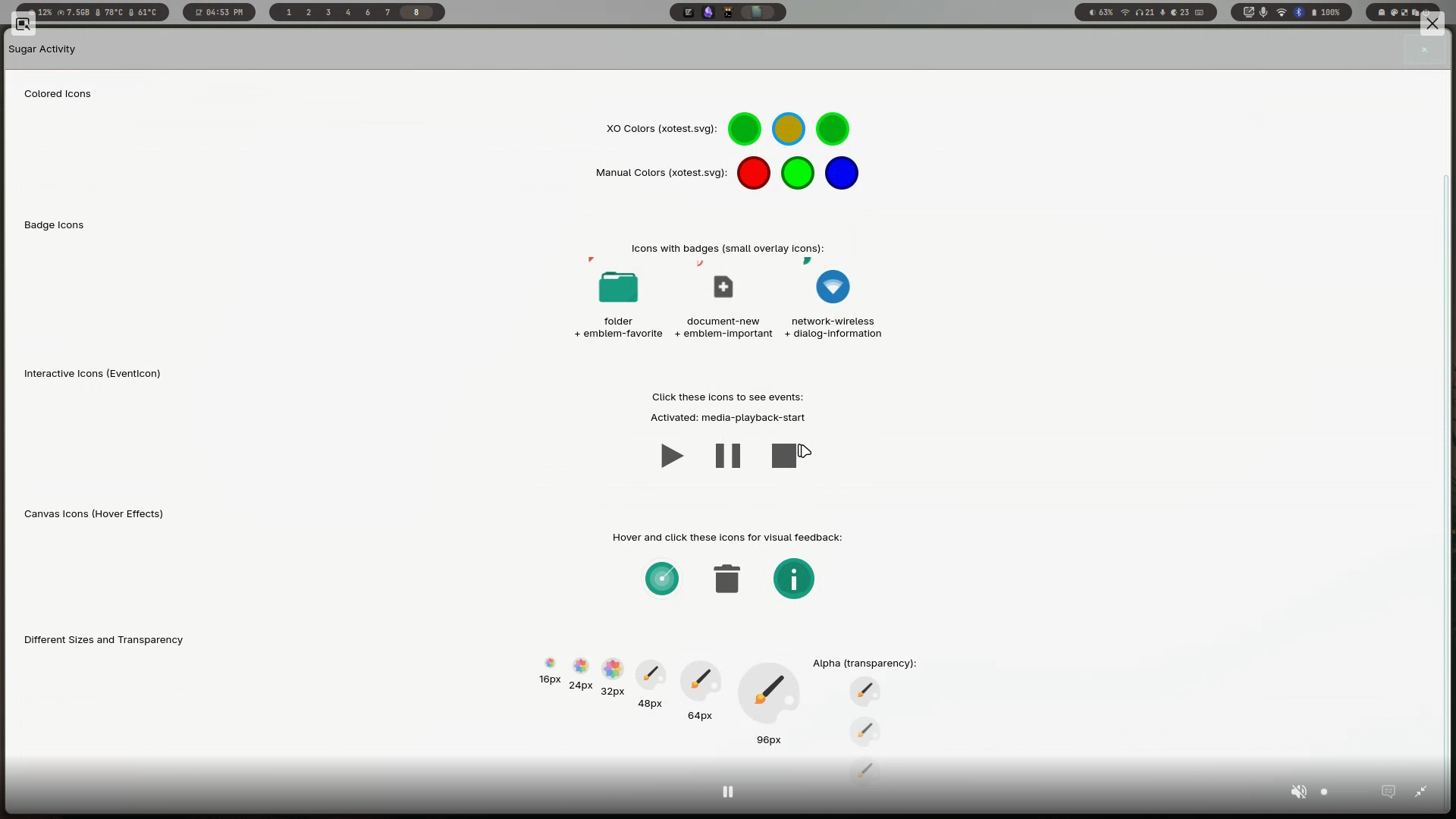
| 07:42, 26 June 2025 | GTK4.png (file) |  |
317 KB | Walter (talk | contribs) | 1 | |
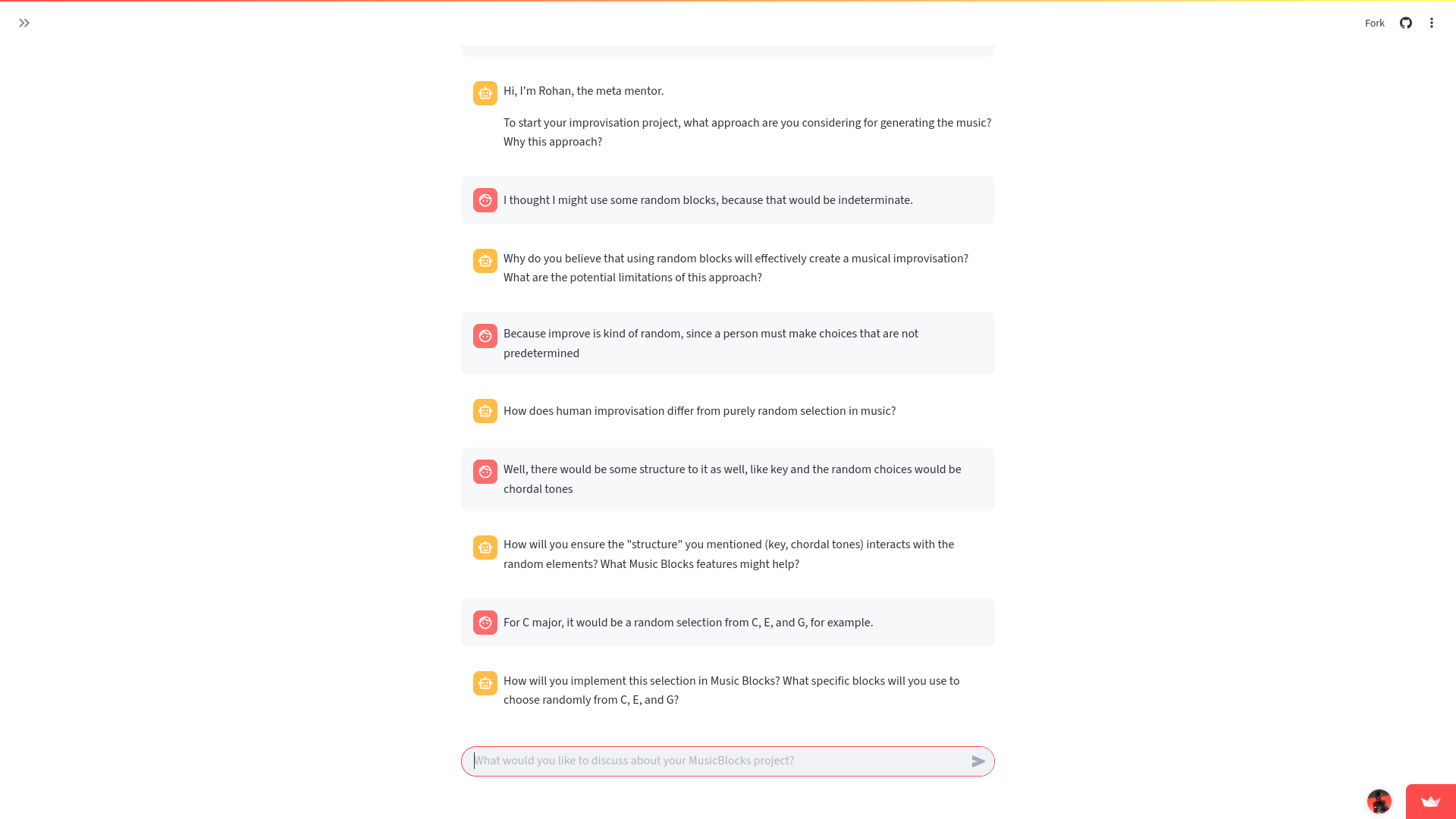
| 07:41, 26 June 2025 | Reflection.png (file) |  |
123 KB | Walter (talk | contribs) | 1 | |
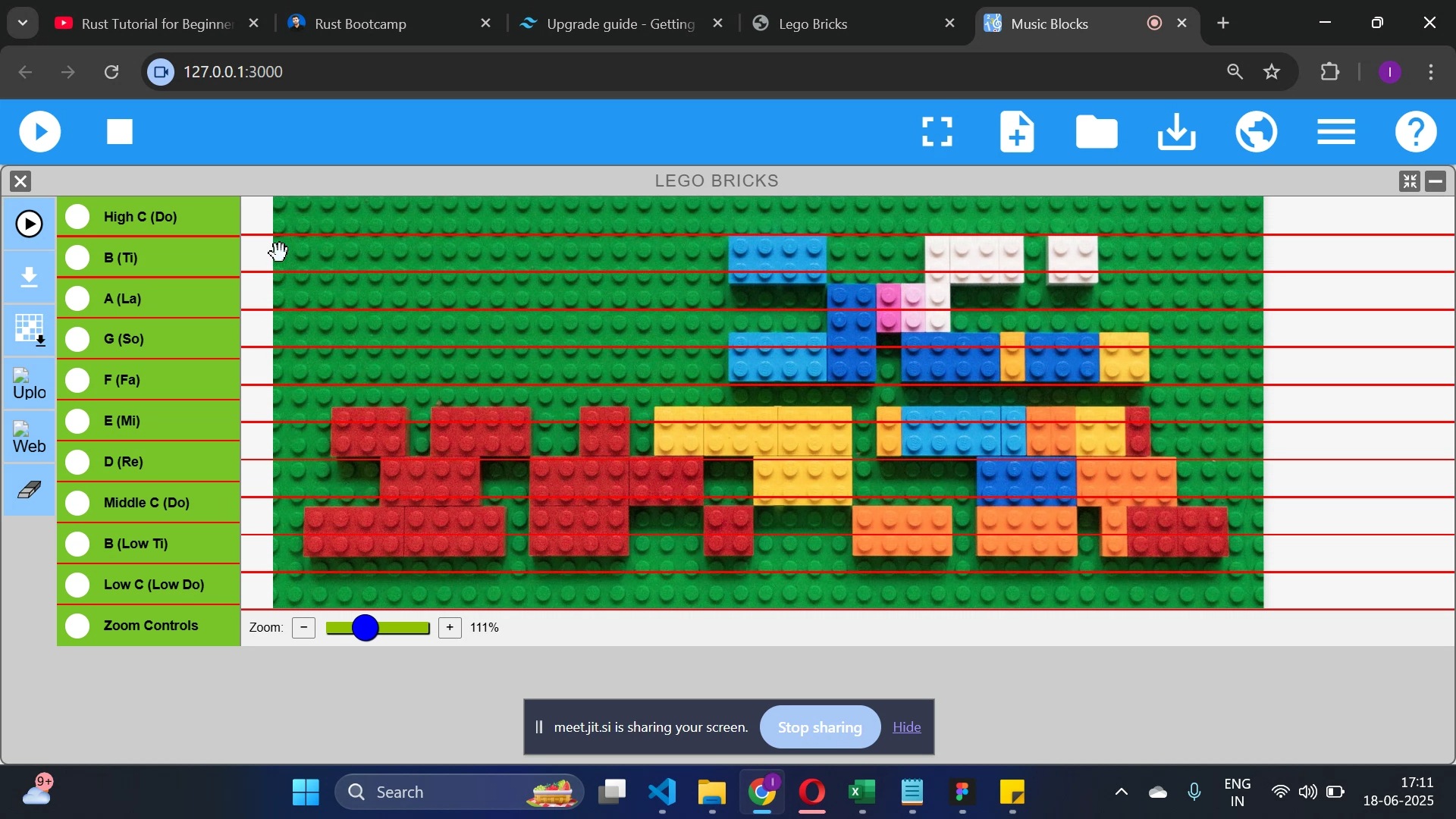
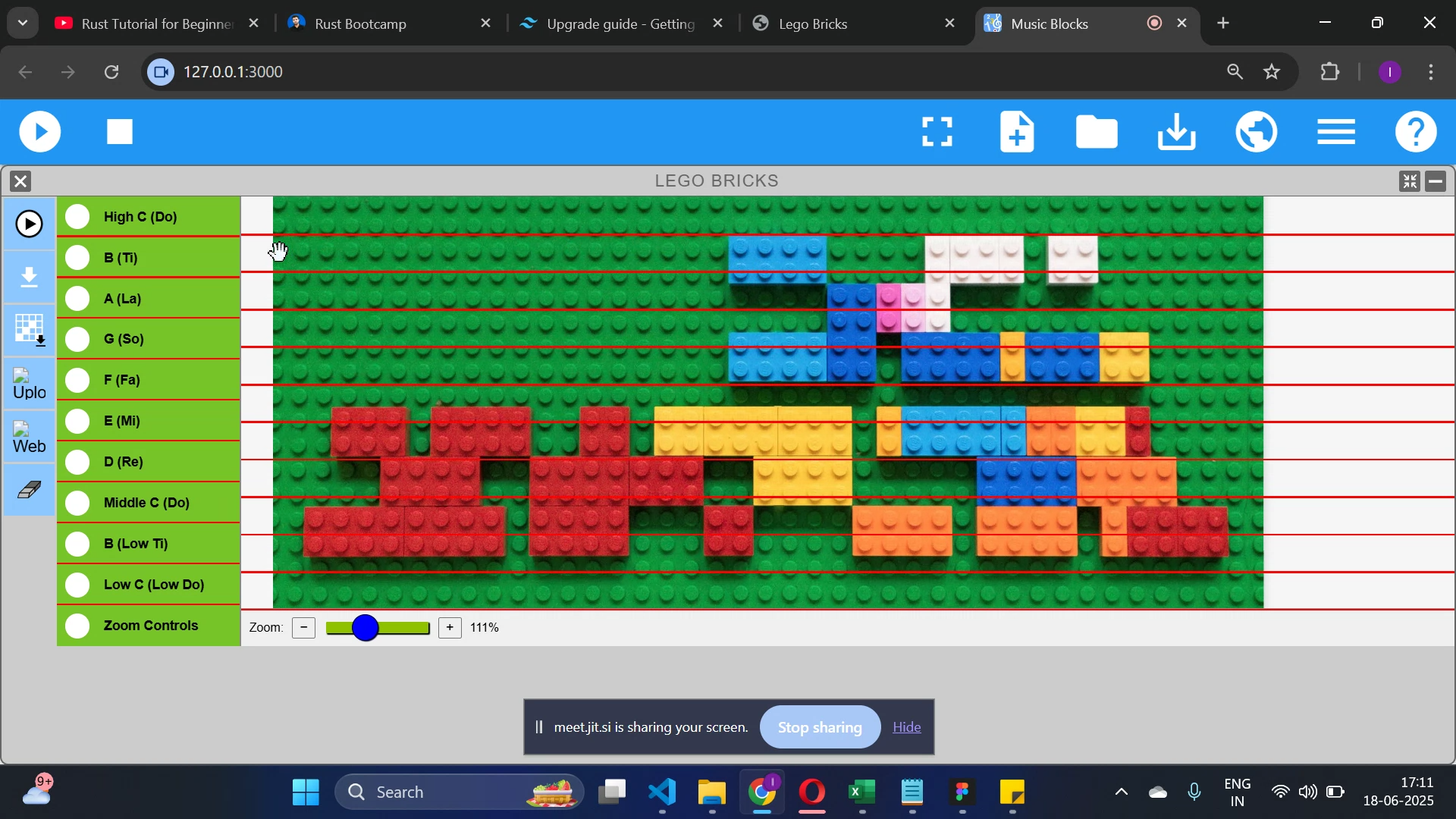
| 07:41, 26 June 2025 | LegoComposer.png (file) |  |
1.59 MB | Walter (talk | contribs) | 1 | |
| 07:39, 26 June 2025 | GitBackend.png (file) |  |
1.18 MB | Walter (talk | contribs) | 1 | |
| 14:21, 25 June 2025 | LegoConverter.png (file) |  |
1.59 MB | Walter (talk | contribs) | 1 | |
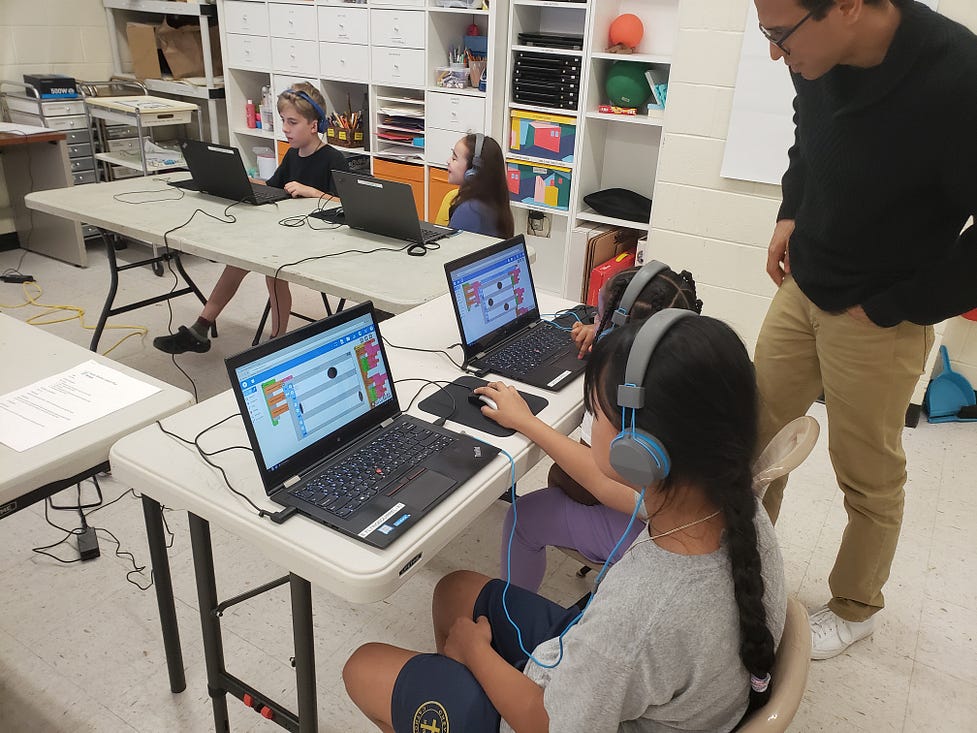
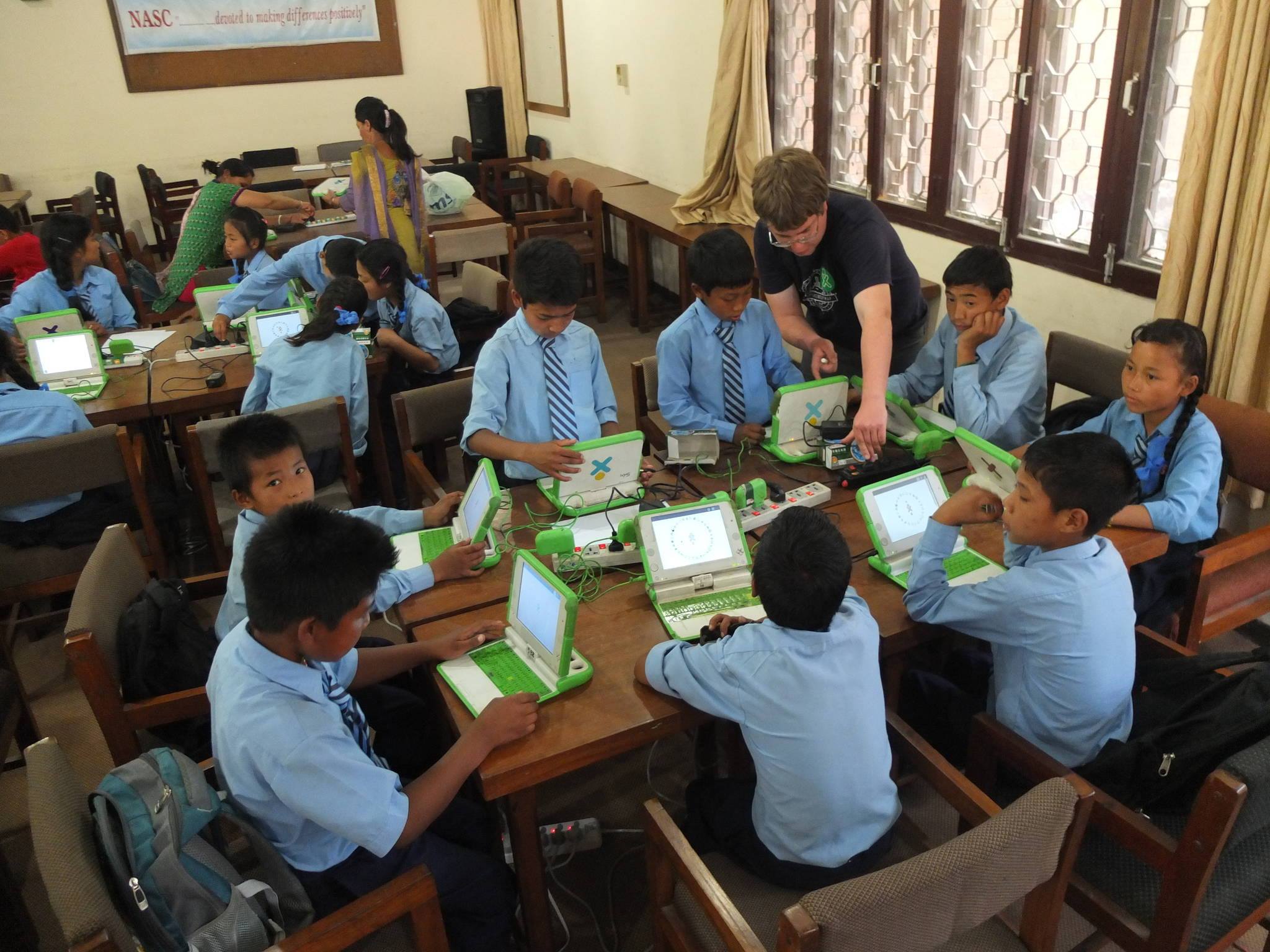
| 10:14, 12 February 2025 | Students3.jpg (file) |  |
127 KB | Safwansayeed (talk | contribs) | Students in classroom | 1 |
| 09:45, 12 February 2025 | New bg6.jpg (file) |  |
327 KB | Safwansayeed (talk | contribs) | Teaching students | 1 |
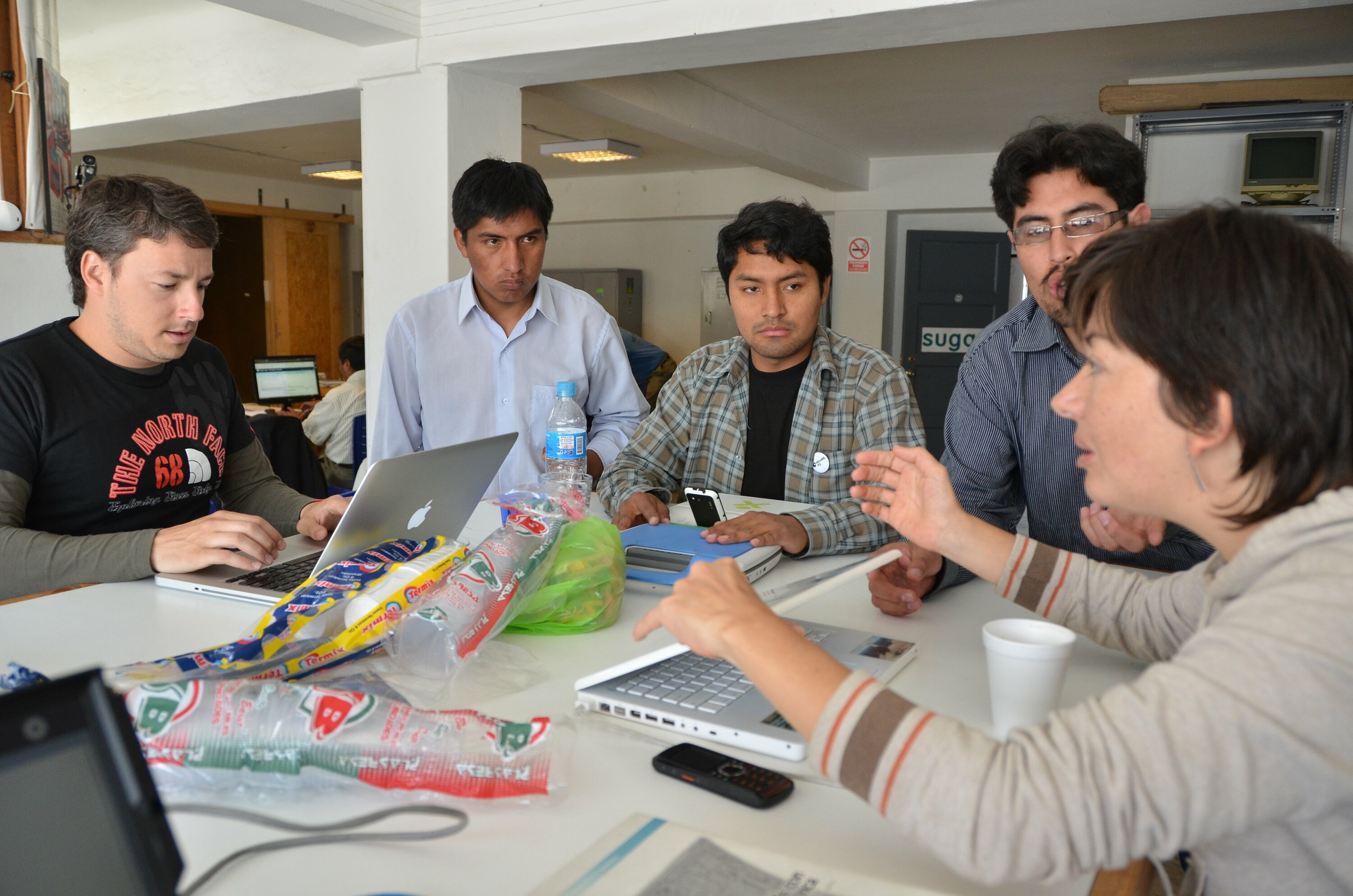
| 03:48, 12 February 2025 | Lima-peru-2.jpeg (file) |  |
954 KB | Safwansayeed (talk | contribs) | Group of people discussing | 1 |
| 22:49, 13 June 2024 | Screenshot from 2024-06-13 22-45-20.png (file) |  |
34 KB | Pikurasa (talk | contribs) | 1 | |
| 08:50, 4 May 2024 | Sugarlabs-onepager.odp (file) |  |
464 KB | Pikurasa (talk | contribs) | This is a totally revamped version of the one-pager, made by a design volunteer with Canva (because that's what they know), using the same basic text, with a few updates to wording. | 3 |
| 16:55, 1 May 2024 | Sugar-Labs-Spring-Fundraiser-Campaign.png (file) |  |
234 KB | Pikurasa (talk | contribs) | 1 | |
| 12:34, 15 April 2024 | Sugar Labs Inc Filed Return 12152021.pdf (file) |  |
237 KB | Pikurasa (talk | contribs) | 1 | |
| 18:25, 12 April 2024 | Pg 0007.pdf (file) | |
606 KB | Pikurasa (talk | contribs) | 1 | |
| 18:24, 12 April 2024 | Pg 0006.pdf (file) | |
484 KB | Pikurasa (talk | contribs) | 1 | |
| 18:23, 12 April 2024 | Pg 0005.pdf (file) | |
592 KB | Pikurasa (talk | contribs) | 1 | |
| 18:23, 12 April 2024 | Pg 0004.pdf (file) | |
979 KB | Pikurasa (talk | contribs) | 1 | |
| 18:22, 12 April 2024 | Pg 0003.pdf (file) | |
979 KB | Pikurasa (talk | contribs) | 1 | |
| 18:22, 12 April 2024 | Pg 0002.pdf (file) | |
690 KB | Pikurasa (talk | contribs) | 1 | |
| 18:21, 12 April 2024 | Pg 0001.pdf (file) | |
818 KB | Pikurasa (talk | contribs) | 1 | |
| 17:53, 12 April 2024 | Sugar Labs Inc FINAL for 2021.pdf (file) | |
270 KB | Pikurasa (talk | contribs) | 1 | |
| 17:51, 12 April 2024 | Year 2022 Sugar Labs Inc Final Return.pdf (file) | |
269 KB | Pikurasa (talk | contribs) | 1 | |
| 17:42, 12 April 2024 | Sugar Labs Inc 2023 Return.pdf (file) | |
269 KB | Pikurasa (talk | contribs) | 1 | |
| 07:16, 10 March 2023 | SL Member List verified 2017.ods (file) | |
29 KB | Chimosky (talk | contribs) | Members added > Sourabha Ganesh | 25 |
| 07:09, 10 March 2023 | SL Member List verified 2023.ods (file) | |
29 KB | Chimosky (talk | contribs) | Members added > Sourabha Ganesh | 1 |
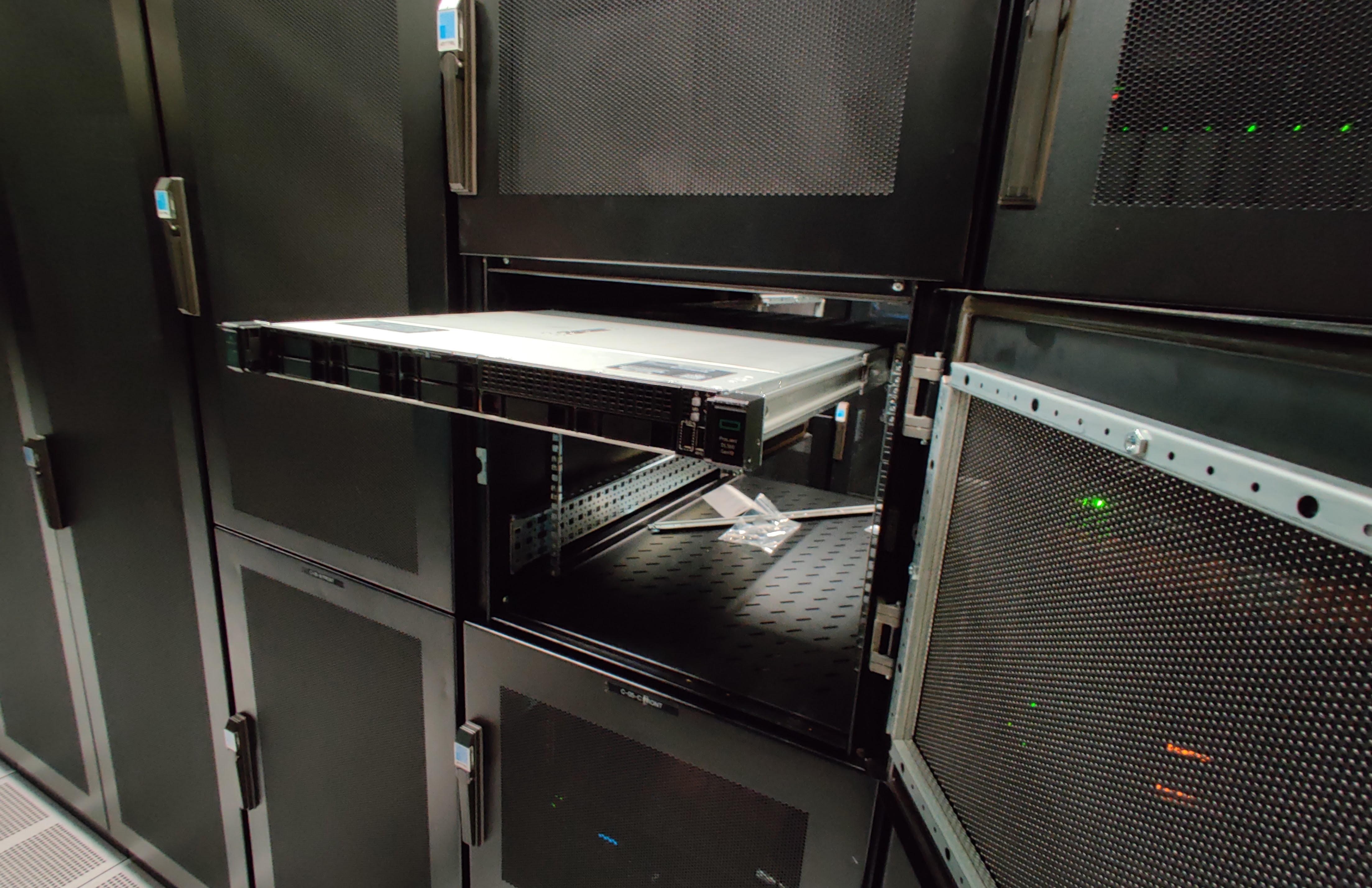
| 03:50, 31 July 2022 | BenderRacked.jpg (file) |  |
1.23 MB | Bernie (talk | contribs) | 1 | |
| 03:44, 31 July 2022 | SonicColo.jpg (file) |  |
972 KB | Bernie (talk | contribs) | 1 | |
| 08:23, 22 May 2020 | Umegbewe Nwebedu.jpg (file) |  |
339 KB | UmegbeweNwebedu (talk | contribs) | 1 | |
| 18:58, 2 January 2020 | Sugar-flatpak-2.png (file) |  |
471 KB | Satellit (talk | contribs) | 1 | |
| 18:41, 2 January 2020 | Sugar-flatpak.png (file) |  |
189 KB | Satellit (talk | contribs) | 2 | |
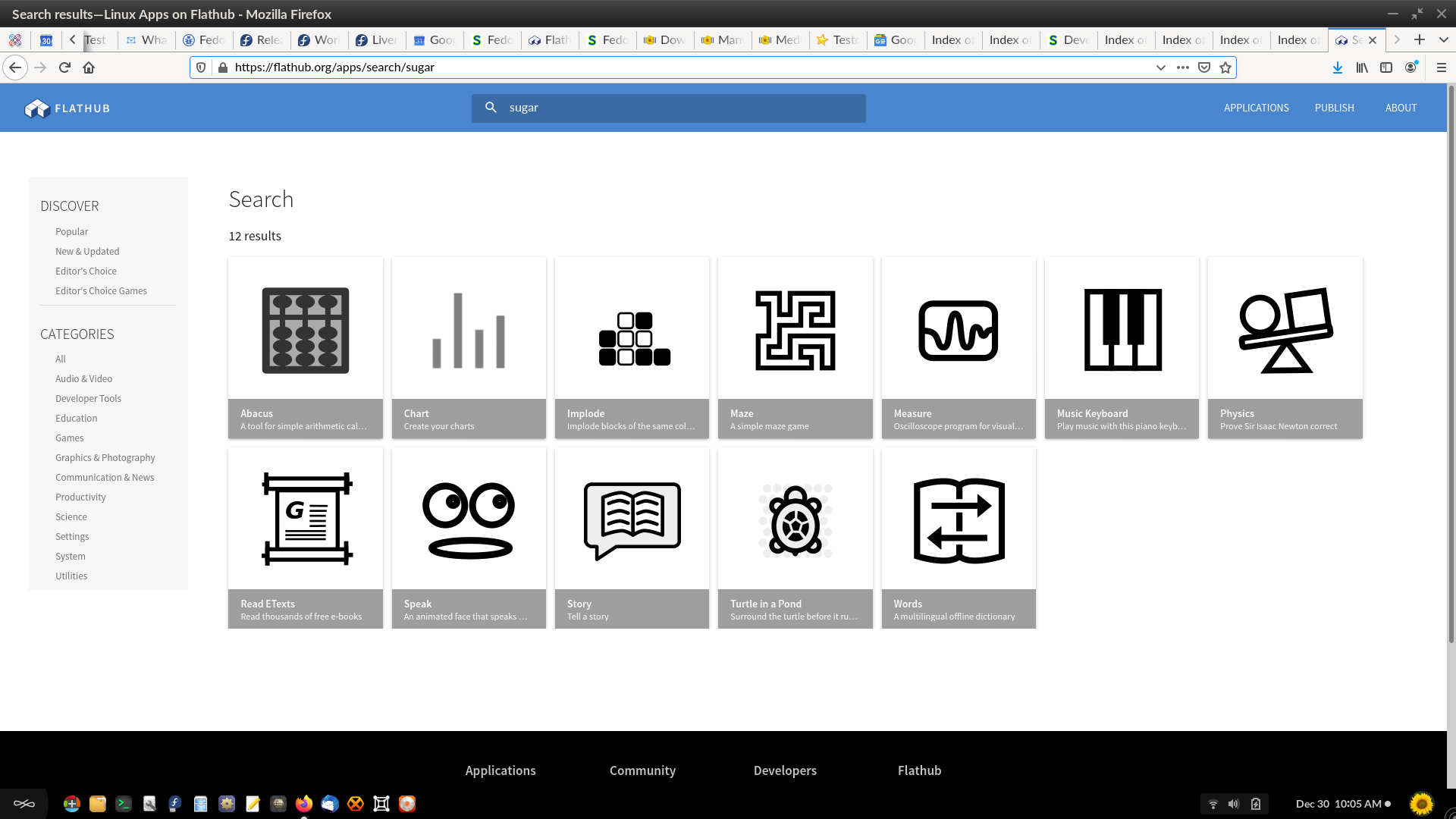
| 14:08, 30 December 2019 | Flathub-sugar,aps.png (file) |  |
185 KB | Satellit (talk | contribs) | 1 | |
| 11:36, 27 December 2019 | Mb5.png (file) |  |
140 KB | Srevin03 (talk | contribs) | 1 | |
| 11:36, 27 December 2019 | Mb4.png (file) |  |
239 KB | Srevin03 (talk | contribs) | 1 | |
| 11:35, 27 December 2019 | Mb2.png (file) |  |
183 KB | Srevin03 (talk | contribs) | 1 | |
| 11:35, 27 December 2019 | Mb01.png (file) |  |
156 KB | Srevin03 (talk | contribs) | 1 | |
| 11:26, 27 December 2019 | Sugar-small.png (file) |  |
14 KB | Srevin03 (talk | contribs) | 1 | |
| 06:57, 24 December 2019 | Arch-linux-logo.png (file) |  |
18 KB | Srevin03 (talk | contribs) | 1 | |
| 06:00, 24 December 2019 | Sugarlabs-home-view.png (file) |  |
67 KB | Srevin03 (talk | contribs) | 1 | |
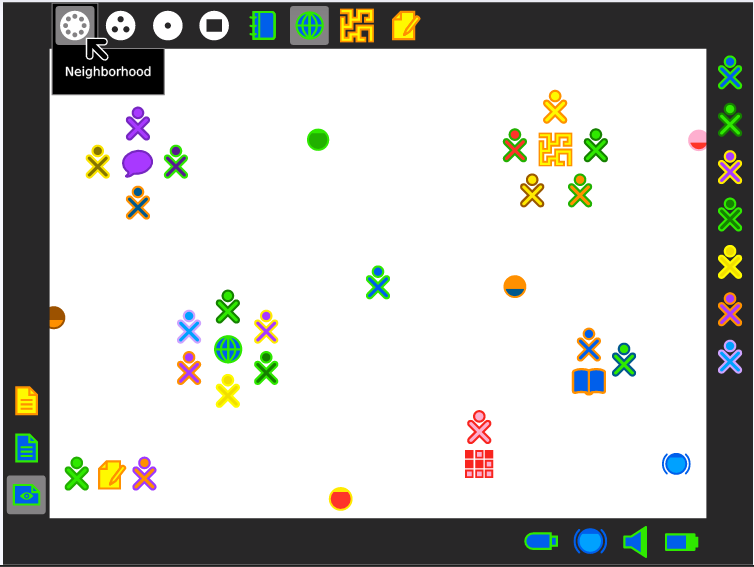
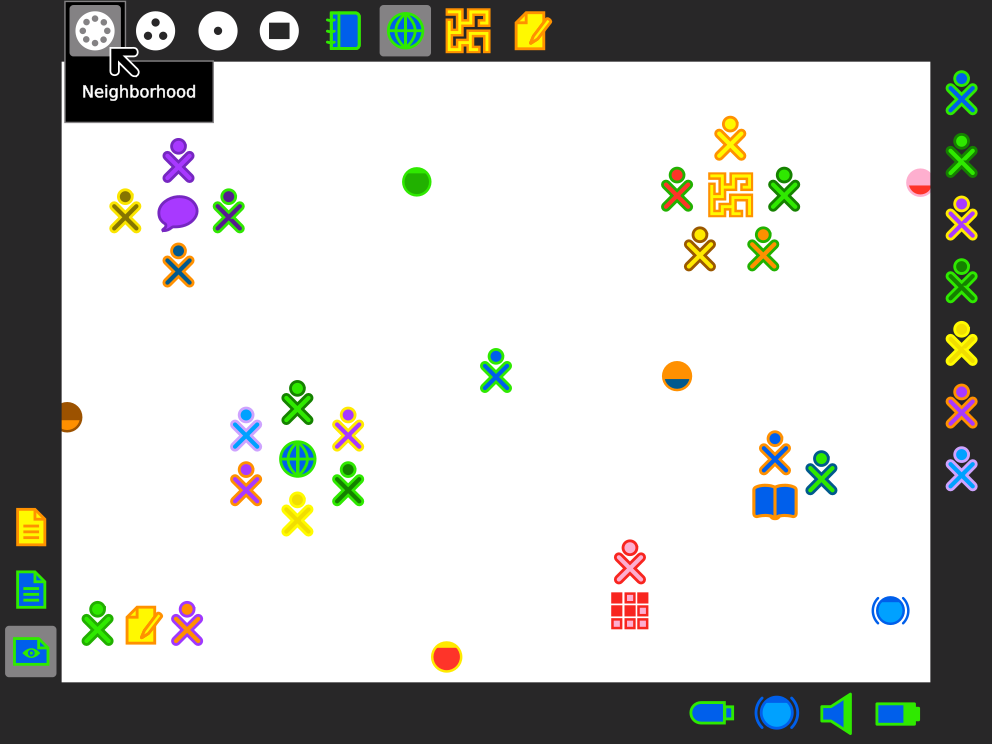
| 05:53, 24 December 2019 | Neighborhood sugarlabs.png (file) |  |
55 KB | Srevin03 (talk | contribs) | 1 | |
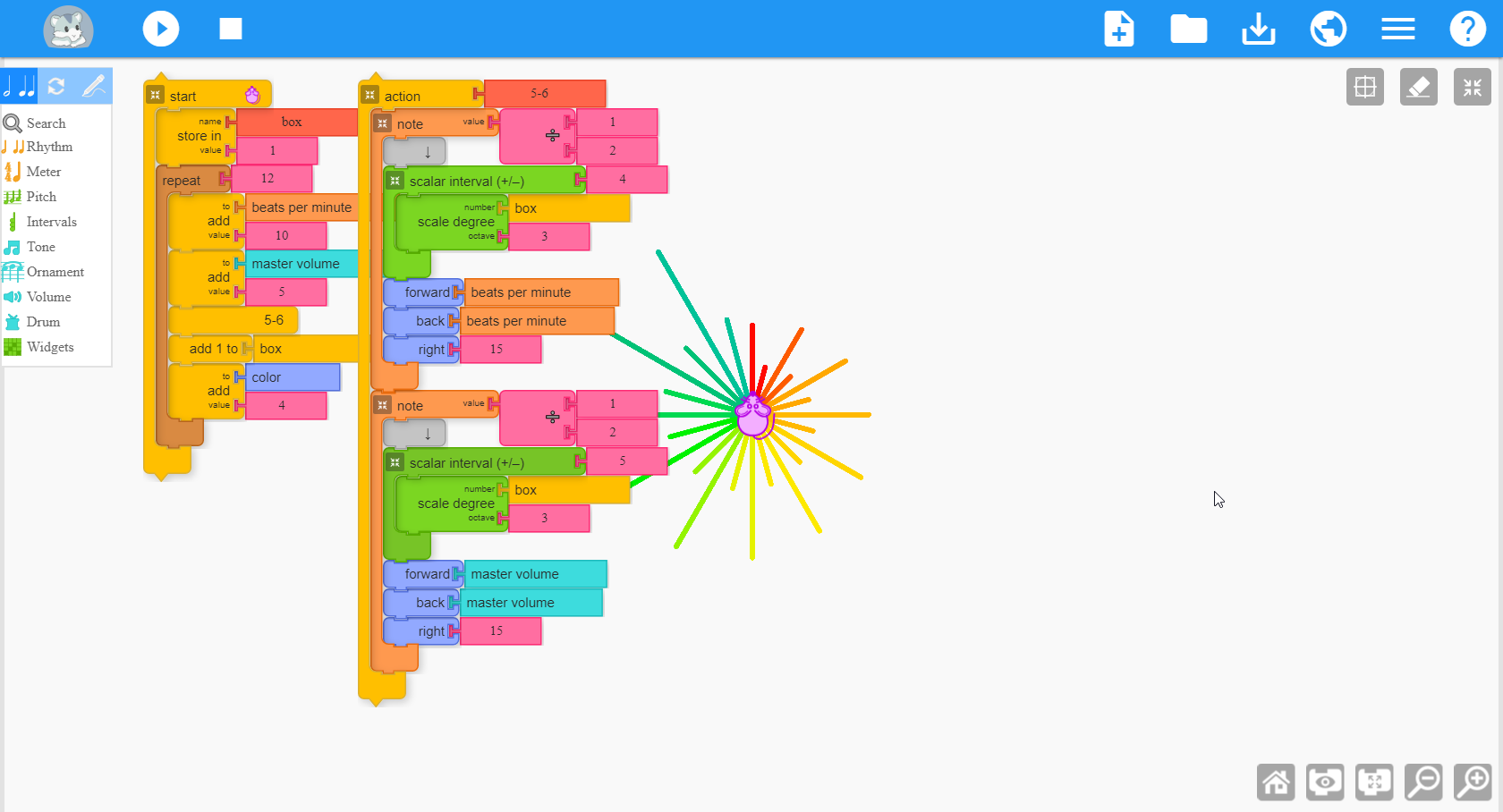
| 05:43, 24 December 2019 | Musicblocks 1.png (file) |  |
196 KB | Srevin03 (talk | contribs) | https://raw.githubusercontent.com/sugarlabs/musicblocks/master/screenshots/Screenshot-1.png | 1 |
| 17:05, 17 December 2019 | Rpi logo.png (file) |  |
33 KB | Srevin03 (talk | contribs) | 1 | |
| 16:55, 17 December 2019 | Apple flat.png (file) |  |
3 KB | Srevin03 (talk | contribs) | 1 | |
| 16:31, 17 December 2019 | Debian logo.png (file) |  |
11 KB | Srevin03 (talk | contribs) | 1 | |
| 16:05, 17 December 2019 | Ubuntu flat.png (file) |  |
11 KB | Srevin03 (talk | contribs) | 1 | |
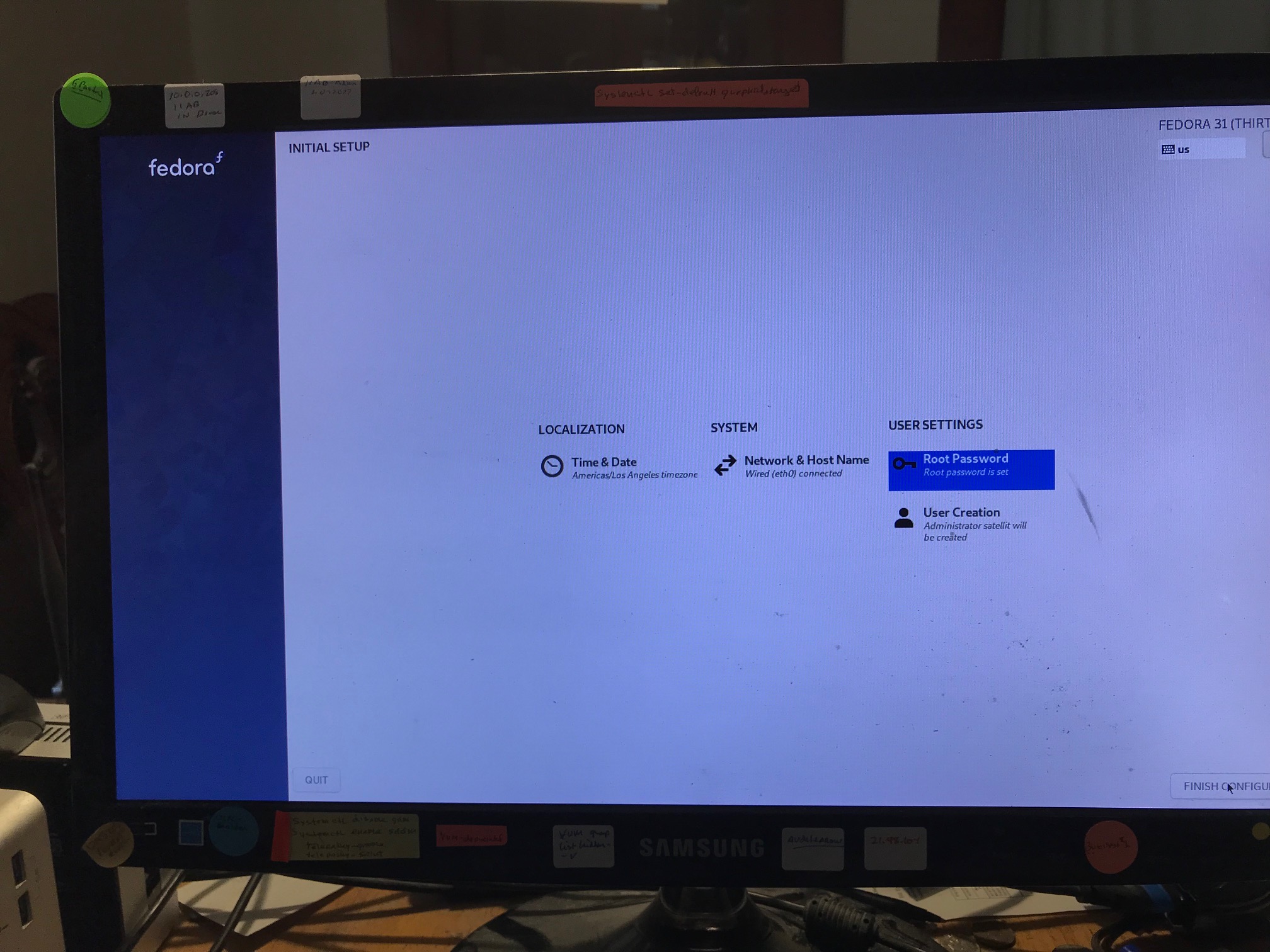
| 15:54, 17 December 2019 | Fedora flat.png (file) |  |
9 KB | Srevin03 (talk | contribs) | 1 | |
| 15:46, 17 December 2019 | Linux flat.png (file) |  |
9 KB | Srevin03 (talk | contribs) | 1 | |
| 15:42, 17 December 2019 | Windows new.png (file) |  |
2 KB | Srevin03 (talk | contribs) | 1 | |
| 11:12, 17 December 2019 | Collaboration on Sugar.svg (file) |  |
304 KB | Srevin03 (talk | contribs) | 1 | |
| 16:30, 18 August 2019 | I-s arm.jpg (file) |  |
524 KB | Satellit (talk | contribs) | 1 |