Sugar on a Stick/Mirabelle
 Mirabelle

Sugar on a Stick - Mirabelle
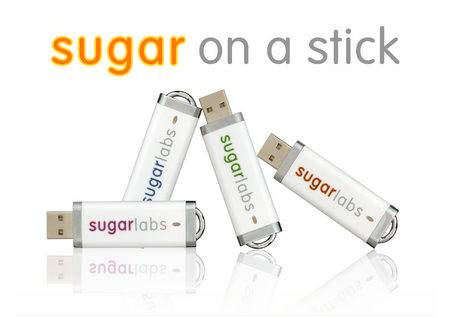
- a Sugar environment you can carry in your pocket
Mirabelle was the 3rd release of the Sugar on a Stick project. It was released on 25 May 2010. Mirabelle is named after the Mirabelle plum.
Release announcement
We are proud to announce the availability of Sugar on a Stick v3, code-named Mirabelle. More information about Sugar on a Stick, including download and installation details, is available at http://spins.fedoraproject.org/soas/.
The Creation Kit has a Quick Guide to download and installation.
What's new in Mirabelle
 |
Sugar version 0.88. The most recent release of the Sugar Learning Platform features support for 3G connections, increased accessibility, and better integration with our Activity Portal (http://activities.sugarlabs.org) allowing students and teachers to update their sticks with additional Activities. More information about the 0.88 release of Sugar is available at 0.88/Notes. |
|
Customize your own remix of Sugar on a Stick. You'll notice that v3 Mirabelle has a smaller Activity selection than its predecessors, Blueberry and Strawberry. We realized we'll never be able to create an Activity selection suitable for all deployments - instead, we've chosen to include and support a core set of basic, teacher-tested Activities in the default image, and invite deployments to use this as a base on which to build a customized Activity selection for their classrooms. Instructions on how to do this are available at http://download.sugarlabs.org/soas/docs/customization-guide/. A quick, but less pristine, method of build customization is available at Sugar on a Stick/Sugar Clone. |
 |
 |
Sugar on a Stick is now a Fedora Spin. After two prior releases of being based on the Fedora distribution, Sugar on a Stick has been recognized by the Fedora Project as an official Spin. This ties us more closely to Fedora's release cycle and gives us resources from their engineering and marketing teams, which extends the reach of Sugar on a Stick and makes the project itself more sustainable. In exchange, users of Fedora have access to an easily deployable implementation of the Sugar Platform; it's a great example of a mutually beneficial upstream–downstream relationship. |
Contributing to Sugar on a Stick
The biggest difference in v3 of Sugar on a Stick has been in its release processes and engineering sustainability; it's now much easier for new contributors to get involved. We continue to move towards our long-term vision of bringing stability and deployability to Sugar's personalized learning environment, and invite all interested parties to join us.
If you'd like to contribute to the next version, due for release in early November, join us at our Contributors Portal at Sugar on a Stick. All types of contributions are welcome, from the technical to the pedagogical, and we're happy to teach what we know and learn what you have to share.
Thank you to all the people involved for their awesome work!
Release history
Introduction
This section is a recap of the events that happened during the v3 release cycle (Mirabelle) of Sugar on a Stick. It was largely constructed during the v3 release review meeting on 5/31/2010 (minutes) (log) from personal memory and soas mailing list archives, since there was no attempt to document the release history during the course of the release cycle itself.
Pre-release
- November 11, 2009 - Fedora (and therefore Fedora Spin) release cycle for Fedora 13 begins; this is significant since Fedora is one of our major upstreams.
- November 2009 - SLOBs declares the term "SoaS" to refer to this project (predating the Trademark policy).
- December 2009 - We're still actually on the Blueberry release and haven't started making Mirabelle yet. Blueberry is getting a lot of good PR from SeanDaly and the Marketing crew.
Approval as a Fedora Spin
"[Spins are alternate versions of Fedora, tailored for various types of users via hand-picked application sets and other customizations." --from http://spins.fedoraproject.org/about
Before SoaS was a spin, it was a Fedora Remix - which means that bit-wise, the product looked the same, but the technical work that needed to happen to generate it was all done manually and without external resources and support, so it happened spasmodically and slowly and with a great number of sleepless nights.
Becoming a Fedora Spin gave us access to Fedora's engineering, marketing, and QA resources, which dramatically improved the sustainability and scaleability of our release engineering processes. For instance, .iso files stopped being produced by the "Sebastian manually builds them every time" process, and started being automatically generated for testing by Fedora build servers. We gained some instant automation of the infrastructure we need anyway, without any more work or maintenance on our part, so we could focus on things like... making Activities work, the stuff that's actually unique to Sugar.
The January 8, 2010 SoaS planning meeting led to the decision to apply for spin status.
- January 14, 2010 - The Fedora Project approves SoaS as a Fedora spin for F13.
Feature Freeze (in the Fedora 13 cycle, Feb 9, 2010) was a hard deadline for Spin approval, so it was significant that we got in before that (Fedora-imposed) deadline. If we'd missed that, we would not have been able to take advantage of Fedora's engineering, etc. resources at all for Mirabelle.
Looking at the January mailing list archives, we didn't explain the significance of the spin decision very well then, which may have led to communication disconnects down the line that made Activity development and Marketing more difficult. In particular, we did not make it clear enough that we were now tied to the Fedora release cycle, and what that meant.
Feature process
The main point made here is that unlike two of our major upstreams (Sugar and Fedora) we didn't have a feature freeze for SoaS, but should have around this time.
- February 9, 2010 - Fedora Feature Freeze
The way features happen in Fedora is that early in the release process, developers propose features, and they are approved by a feature freeze date (which is before the alpha release). They have to meet certain criteria by certain deadlines - if they don't, they're dropped and not eligible for mention as features. Major features must be in and testable by Alpha; minor changes need to be in and testable by Beta, after Beta it's only bugfixes allowed.
This feature process is not unique to Fedora. Feature processes are things that happen in basically every major FOSS project, and really in every major engineering project (even non-software) - it's how we systematically make sure we build something that's good and working.
The feature process also aids with marketing. The Marketing team in Fedora makes their plans according to the feature list that's set by Alpha - this lets us plan how to target what features early in the process.
Since SoaS relies on both Sugar and Fedora as upstreams, we rely on their feature processes - most SoaS features come from either Fedora features or Sugar features. (For reference, our main upstreams are Fedora, Sugar Labs (sugar-core), ASLO (Activities), GNOME, and Python.) For v4, we will be building and using a lightweight feature process for SoaS that inherits from those two upstreams.
Activity development confusion
Activity developers weren't informed of changes in the libraries their Activities depended on, when those libraries changed in Fedora (and thus got included in SoaS). This led to confusion and instability late in the cycle when Activity folks belatedly realized this had happened.
Two of our upstreams (Fedora and ASLO) basically collided when they combined, and didn't realize that collision was coming, because we didn't track dependencies between them... part of the problem was that we didn't know who was responsible for keeping track of that aspect of communication, so everyone assumed it was someone else and nobody did it.
The Activities confusion manifests itself in the small number of "supported" activities in the v3 release. Marketing was then confronted with the sudden removal/noninclusion of activities from the release - again, this is something that could have been prevented with a working feature process.
QA
Thomas did field-testing (building real SoaS sticks from .iso files and testing on those) - it's the closest thing to systematic testing we've had yet, though we still have a ways to go. Thank you also to James Cameron in Australia for his testing help!
Mirabelle didn't have a test plan and it made things confusing for both testers and release engineering; it wasn't always clear what needed to be tested, or what had been tested and how, or where results were or what they meant, and how test results should impact development and vice versa.
Documentation
We now have a Customization Guide and Creation Kit as official documentation on how to custom-build an image and burn a SoaS stick, respectively. A new release of the documentation will come out with each new release of SoaS. This is an improvement over our ad-hoc wiki documentation methods, allowing us to better support a small number of known-working "how to set up SoaS" instructions.
We standardized on official install methods (liveusb-creator, unetbootin) but this was done quickly without broad consensus so there's still friction about alternate methods that are out there.
Release and Marketing
Mirabelle was released on May 25, 2010. It's shiny! It's yellow! It had over 300 downloads within the first week - as of this writing 10 days after release, we're at 429 downloads.
We've gotten some very nice letters from Daniel and Simon on the release process.
We have a shiny user-facing page as well as a Contributors Portal, to serve (and hopefully link) the two different audiences. We hope most people will want to wear both hats, in part.
Major accomplishments this release cycle
- We have a team!
- We have a release schedule!
- We started using the Fedora Spins process and engineering resources, which made release engineering much smoother.
- We started driving communications to public channels - notably the SoaS mailing list - so things are more transparent.
- Multiple people have commit access to each repository that needs to be handled, so there are no single-person bottlenecks remaining.
- We shifted to a time-based release cycle, meaning we had a target release date set early in the process rather than our prior "it seems ready... now-ish?" method.
Notes for the future
- Pick SoaS v4 color combos soon.
- Sync with Design earlier in the release cycle for color-choosing, etc.
- There's a FUDCon in September in Zurich, we may want to look at that as a Sugar/SoaS meetup opportunity.
- Send fortnightly release schedule emails to the SoaS list about upcoming milestones
- Activity Inclusions Criteria to be finalized for v4
- Track core libraries and dependencies more closely, especially for Activity developers - make sure our upstreams are also in sync with each other, and that it's clear whose responsibility it is to keep track of what.
- It would be good if we could enable a python option to close check the api and break the build if there's something missing / changed.
- We need a central test reporting location.
- We should find ways to tap tabs and the Welly/Auckland testers for SoaS QA.
- We should look at the Fedora AutoQA project to see what QA features we can automate.
- SeanDaly is taking the Mirabelle media launch discussion up at the next Marketing meeting.
- SeanDaly to start discussion on multiple website (spins.fp.o, wiki.sl.o, etc.) divergence on-list
- satellit to bring up DVD as feature for consideration in v4, by way of figuring out the feature inclusion process
- make a modified browse startup screen with added links to home/wiki/bugs/school/activities plus the the on-line SugarCreationKit(DVD) -to be maintained by fedora for v4 Builds of Soas
Press coverage
Feel free to add links to press coverage you find about Mirabelle to this section.
- 2010-06-14 Sugar on a Stick v3 Mirabelle released - The H Online
- 2010-06-11 The correlation of Mirabelles and sustainability
- 2010-06-11 Sugar on a Stick hits 3.0, teaches us about a new kind of fruit
- 2010-05-28 Sugar on a Stick gets sweeter with Fedora Linux (InternetNews)
- 2010-05-28 Sugar on a Stick v3.0 geht ins GSM-Netz (Linux-Magazin)
- 2010-05-27 Sugar on a Stick v3 freigegeben (Pro-Linux.de)
- 2010-05-26 Announcing Sugar on a Stick v.3 (LWN.net)