Tutorials/Chatting with the Chat Activity: Difference between revisions
| Line 34: | Line 34: | ||
===Joining a Shared Chat Session=== | ===Joining a Shared Chat Session=== | ||
:This is an example of joining another users | :This is an example of joining another users shared chat | ||
;Click [[File:Mesh_key_f1_small.png]] in the frame or Hit '''F1''' key and you switch to the Neighborhood View. | ;Click [[File:Mesh_key_f1_small.png]] in the frame or Hit '''F1''' key and you switch to the Neighborhood View. | ||
* '''move mouse pointer to center of window to retract frame.''' | * '''move mouse pointer to center of window to retract frame.''' | ||
*Join Chat | *Join Chat | ||
:hover the mouse cursor over the Chat icon | |||
:Click '''Join''' on drop down menu | |||
:[[File:F1_Join_Chat.png|500px]] | :[[File:F1_Join_Chat.png|500px]] | ||
: | :You are Chatting (Collaborating) in the other user's Chat | ||
:[[File:Shared_Chat.png|500px]] | :[[File:Shared_Chat.png|500px]] | ||
:You can see your | :You can see your messages (yellow) and Other user's messages in blue | ||
:Other's user's color will match the colors of their XO Avitar | :Other's user's color will match the colors of their XO Avitar | ||
:It will not always be blue | :It will not always be blue | ||
Revision as of 12:34, 15 December 2011
- Under Construction --Satellit 09:20, 15 December 2011 (EST)
How to Use Chat
Boot Sugar
- The Home (or f3) Screen appears

- The Chat icon
 is on right side of the Spiral of Activities

Start Chat
- Click on the Chat Icon

Send Chat Message
- Type your message in the bottom field of Chat
- Hit return
- Here Testing Chat is the message
- Note that the User's Avitar name is displayed on the line before the message
- In this case Tris5-sugar: Testing Chat
- This becomes useful if several other users join the chat
Use emoticons in your chat
Click on the "happy face" icon on the top bar
- A drop Down menu appears and you can click on any of the emoticons on it

- hit return
- the emoticon is added to your message

- Click on the 0 with a dot inside icon on the top bar
- Click
 in the drop down menu


- You are now collaborating in a shared session
- Your Shared Chat will show an Icon on the f1 Neighborhood.
- Other users can join your chat from there.
- This is an example of joining another users shared chat
- Click in the frame or Hit F1 key and you switch to the Neighborhood View.
- move mouse pointer to center of window to retract frame.
- Join Chat
- hover the mouse cursor over the Chat icon
- Click Join on drop down menu
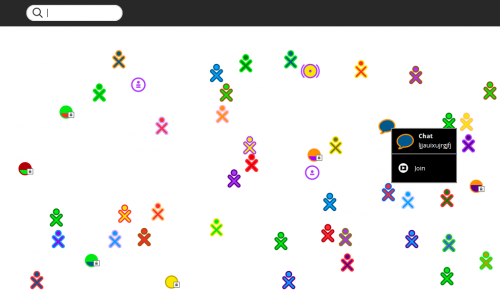
- You are Chatting (Collaborating) in the other user's Chat
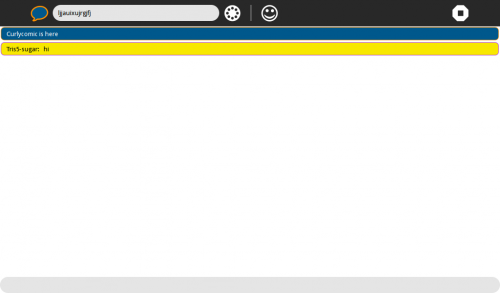
- You can see your messages (yellow) and Other user's messages in blue
- Other's user's color will match the colors of their XO Avitar
- It will not always be blue


- click on the white octagon icon with a black square in it, in the right top bar
- "Stop Ctrl+Q" appears in drop down menu
- Click on it
- You return to the Home (or f3) screen
Quitting Chat
- Not shared

- click on the white octagon icon with a black square in it, in the right top bar
- "Stop Ctrl+Q" appears in drop down menu
- Click on it
- You return to the Home (or f3) screen