Tutorials/Installation/Install SoaS in VirtualBox-f18
Install with Anaconda f18 in VirtualBox
- This install is used when you want to install a fedora 18 desktop to a hard-disk; Virtualbox HD or a 8 GB USB.
- A similar but simpler installer is entered in booted Live CD's using the command liveinst in root sugar-terminal(su) or other root terminal.
- this differs from the installer on fedora 17 or older versions
- http://wiki.sugarlabs.org/go/Tutorials/Installation/Install_SoaS_in_VirtualBox
- anaconda NuUI installer is NEW and has bugs:
- A major feature of f18 is the development of newUI a new anaconda.
- Sample Install to Virtualbox 4.2.4 using F18 Beta DVDx86_64


Settings In Virtualbox


Start Installer


Anaconda main Hub
- Click on each section (spoke) to change or set
- click [Done] to return to main Hub
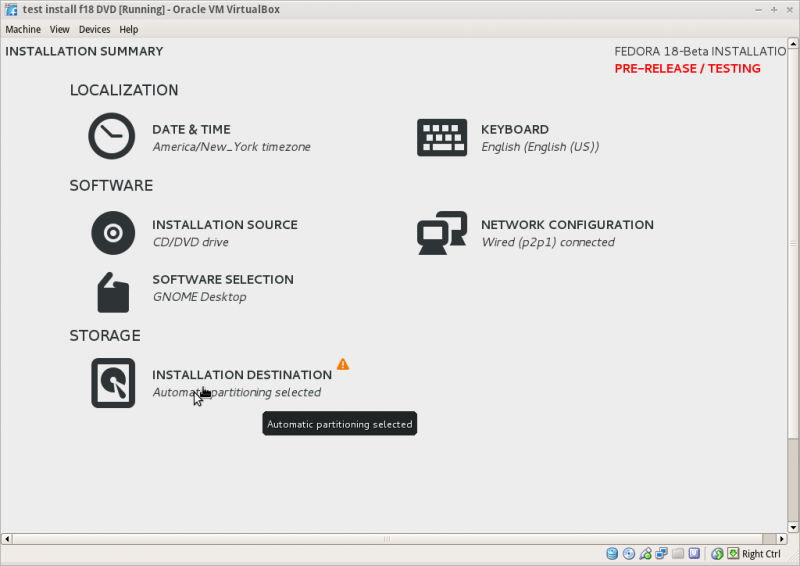

Storage (Disk Selection) then [DONE]
- To format the disk or reclaim space click on [Continue] right bottom
Reclaim Space
[+] partition scheme drop down box click > [+]
- Standard Partition
- BTRFS
- LVM (default)

- [Reclaim space]
- Reclaim Disk space window
- shows disk partitions with drop down boxes - default is Preserve click on Preserve; get dropdowns Preseve; Shrink; Delete
- select your choice

- Do this for each partition shown.
- When finished [Reclaim space] returns to main Hub
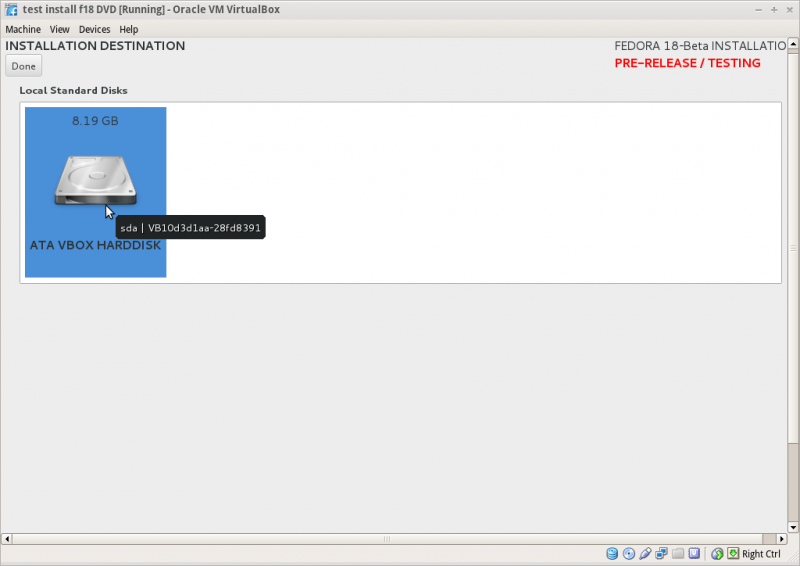

- Click [Done] to return to main hub
Software Selection and [Done]
- select left column (Environment) and right Column (Add-ons)
- Gnome-desktop is default
- scroll down left collumn and select sugar-desktop
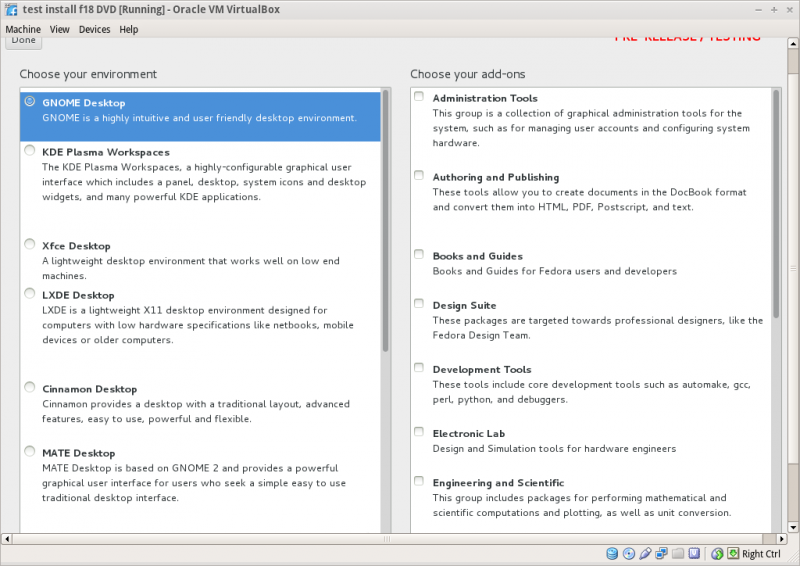
- Wait for software checking

Network Configuration and [Done]
- recognizes wired DHCP connections if present
- Wireless will show up if wlan0 is visible and supported
- [Configure] to set up either connection.
Time Zone select and [Done]

Begin Installation
- Appears when all warnings for unfinished spokes are gone
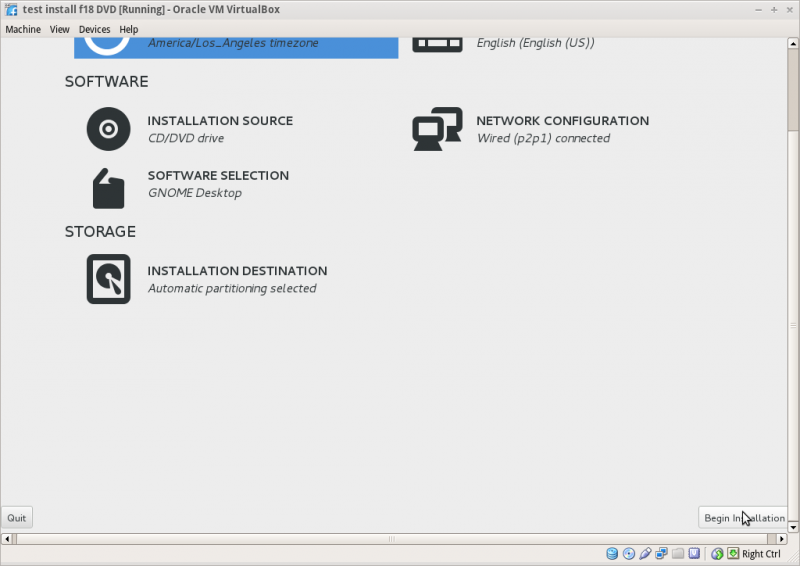

Root Password
- Appears after install begins

- enter password on both lines and hit [back] 2 times
- Wait for [Reboot] when install is completed