Sugar on a Stick/Blueberry
Project Home · Get Involved · Contacts · Resources · FAQ · Roadmap · To Do · Meetings
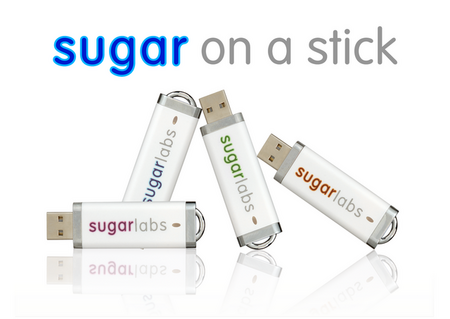


Sugar on a Stick - Blueberry
- a Sugar environment you can carry in your pocket
This document provides instructions for preparing a Sugar on a Stick (SoaS) installation. It also contains a list of known issues and sources of further information, for example how to use a Boot Helper CD for very old PCs.
If you want to proceed directly to downloading, please select your operating system here by clicking on one of the icons below. You might also want to read through the release notes.
Choose your operating system:
 |
|
 |
|

Note: Andrew Brookes has created an illustrated guide (with step-by-step screen shots) of the SoaS-creation process (See http://www.nkran.net/sugar_install.jsp).
What's New?
Sugar on a Stick v2 Blueberry contains a number of new features that improve the overall user and learning experience. Here is an overview of the most notable ones:
Sugar 0.86
 |
Sugar on a Stick v2 Blueberry ships the latest Sugar release, 0.86.3. It features:
Detailed release notes for Sugar 0.86 are available here. |
ZyX-LiveInstaller
 |
A frequent request we received concerned a means of installing Sugar to a hard disk.
We teamed up with the zyx-liveinstaller developer in order to provide:
|
E-Books
 |
Sugar on a Stick v2 Blueberry supports viewing e-books through Read, including the increasingly popular .epub file format. Historical classicals and interesting literature for young readers are provided through an additional page.
Thousands of additional e-books can even be easily accessed through the included Get Internet Archive Books Activity. A screencast of the e-book sharing process is also available. |
Activities
 |
Sugar on a Stick v2 Blueberry also includes updates to the standard collection of Activities for children and many new ones. An example is SocialCalc, a spreadsheet activity that allows users to do complex mathematical calculations. Sugar on a Stick v2 Blueberry also ships the TamTam activity suite, which takes the learner on a journey through sound and music, beginning with a simple musical toy and progressing up to a sophisticated sound synthesizer. Other activities, such as the very popular Physics and TurtleArt, have been updated. Sugar's rich collection of Activities are available for download from Sugar's Activity Library. |
Based On Fedora
 |
Sugar on a Stick v2 Blueberry is based on the latest version (F12) of the Fedora operating system, a GNU/Linux distribution which showcases the latest in free and open source software. |
Get It!
For Windows Users
Persons using PCs running Windows have two options for creating a Sugar/Blueberry USB flash drive:
- Option #1: Use LiveUSB Creator from within Windows to create a Sugar-on-a-Stick Live USB with a compressed filesystem.
 |
|
- Option #2: (ADVANCED USERS ONLY) Create a bootable Sugar/Blueberry USB flash drive that does not have a compressed filesystem. This option requires at least a 4GB drive.
- WARNING: MAKING A MISTAKE IN THIS PROCEDURE COULD WIPE YOUR PC'S HARD DISK!!!!
- In Windows, download the latest version of the Live CD image, and burn the image to a CD.
- Follow the instructions here to create the bootable Sugar/Blueberry USB flash drive by (i) booting the PC into Sugar with the CD and (ii) running ZyX-LiveInstaller within the Terminal activity. You will also need a spare, blank (or erasable) USB flash drive -- preferably manufactured by a different manufacturer than the target USB -- to use as a swap drive during the procedure. Any data on the swap drive will be wiped.
Notes:
- If you do Option #1 often, you may want to download the Blueberry CD Image once. Then, when it comes to create the flash drive, hit the Browse button and select the downloaded file rather than selecting "Blueberry" from the menu as above.
- Option #1 creates an SoaS that cannot detect when its drive space eventually runs out, causing stick failure.
- Option #2 creates a more-robust, more-stable drive whose free space can be monitored using the Terminal activity. Non-compressed SoaS drives, however, are not bootable with a boot helper CD.
For GNU/Linux users
1. Linux Users will use a slightly different approach than Windows users to ensure maximum compatibility with different distributions. Please follow the instructions carefully to ensure your data is preserved.
If you are a Fedora User, run the following command:
yum install liveusb-creator
Then download soas-2-blueberry.iso and select it by using the Browse button. You can check to make sure that the .iso downloaded properly by comparing the sha1sum to the one here:[1](sha1sum)
sha1sum soas-2-blueberry.iso
8022b68433295f12fbfffa66bf49205851a6a1e0
- Launch LiveUSB Creator and follow the instructions above.
2. If you use any other distribution, download the image-writer tool from here and the live image from here.
This solution will not create a persistent storage overlay
- Open a terminal and become root, either by using su or sudo.
- Enter the following command: ./image-writer soas-2-blueberry.iso
- WARNING: If you proceed here, your flash drive will be wiped!
- The script will output a device name; confirm that it matches with your flash drive.
- You will be notified once the process has finished.
3. zyx-liveinstaller: Sugar on a Stick/ZyX-LiveInstaller
4. Instructions for installing with persistent storage for Blueberry: Talk:SoaS Blueberry Instructions. See also Sugar on a Stick/Linux.
Boot Helper
If your machine doesn't support booting from USB devices, then download the soas-2-boot.iso and burn it to a CD. ImgBurn is a free Windows application to do so, in case your current computer does not come with such a software.
- Use the Windows Explorer to name your USB flash drive FEDORA (from the Properties dialog for your device), as otherwise, it won't be recognized by the boot-helper CD.
- Put both the boot-helper CD and the USB flash drive in your computer and let it boot from the CD.
If your boot hangs, you may need to modify the boot command by appending:
selinux=0
You do this by interrupting the Helper CD boot by hitting the Esc key once the initial splash-screen appears. You should see a list of four boot options. At this point, hit the Tab key. The command line should appear. Add selinix=0 to the end of the line and hit Return (or Enter). The boot should proceed from here as normal.
For Mac OS X Users

Sugar on a Stick Blueberry and Strawberry images are for the Intel processor.
See Using Sugar with powerPC if you do not have an Intel processor.
- See also Macintosh.
To identify the Mac's processor and OS X version
Choose Apple menu > About This Mac. A small window will appear titled About This Mac. The processor type should be in the window.
To download Sugar on a Stick
- Download the liveUSB image soas-2-blueberry.iso
- Verify the file was downloaded properly by calculating its SHA-1 checksum
For protection against tampering and transmission errors, always compare the checksum of each download.
To calculate a file's SHA-1 checksum
Open the Terminal Utility and type into the Terminal Window. Press the return key to run the command.
- Mac OS version ≥10.6
shasum ~/Downloads/soas-2-blueberry.iso - Mac OS version ≤10.5
openssl sha1 ~/Downloads/soas-2-blueberry.iso - Compare the result to the official SHA-1 checksum stored at Sugar Labs.
To install Sugar onto a Stick
- Download the image-writer for Mac
PythonLauncher may automatically open the file; don't allow that, just download it.
- Verify the file was downloaded properly by calculating its SHA-1 checksum
For protection against tampering and transmission errors, always compare the checksum of each download.
- Eject all USB drives. Insert the flash drive you wish to install Sugar on a Stick.
WARNING: your entire flash drive will be overwritten in the next step! All partitions will be erased.
- Open the Terminal Utility and type into the Terminal Window. Press the return key to run the command.
cd ~/Downloads; python image-writer-mac.py soas-2-blueberry.iso
 |
To create a Boot Helper CD
- Download the USB boot helper soas-2-boot.iso
- Verify the file was downloaded properly by calculating its SHA-1 checksum
For protection against tampering and transmission errors, always compare the checksum of each download. - Open the Disk Utility. Drag the downloaded soas-2-boot.iso to the bottom of the list.
- Select the Disc Image in the list, then press the Burn button.
- Insert a blank disc when prompted.
To boot Sugar on a Stick
- insert the USB drive loaded with Blueberry flavor Sugar on a Stick.
- insert the Boot Helper CD.
- Press the Power Button on the intel Mac. If a dialog box appears, press the Restart Button.
- During the startup sound, press and hold the letter C.
If the apple logo appears, Sugar is not booting. Restart and try again.- the C key must be pressed during the startup sound and you must continue to hold it down.
- you may release the c key once the sugar logo appears.
Suggestion:
Using a boot helper disc may fix the bugs listed below. See these instructions.
Mac Bugs
The boot sequence does not work properly due to minor bugs. Follow these workarounds to boot an intel Mac
Note: to the child it is named SUGAR. But the stick they take home is named FEDORA.
- BootHelperCD cannot boot Mac without typing secret code into difficult to read window:
for complete details click here- press the tab key to interrupt the boot sequence.
- append selinux=0 to the kernel's list of boot parameters.
- press return or enter to continue the boot process.
Submit bugs to request a different flavor of boot helper CD that boots Mac automatically, without typing selinux=0 and removes the countdown, Macs innately have the option key interrupt, the mouse down interrupt and the power button interrupt to handle this boot time issue.
- BootHelperCD will not boot sticks created by a Mac:
- BootHelperCD can only boot sticks named FEDORA.
- Image-writer-mac writes the name blueberry-2-soas onto the stick.
- USB stick is created as read only. So the name is not easily changed by mere mortals.
This is a showstopper.
You cannot boot without hacking the USB stick name.
Use windows instructions to create Sugar on a Stick, named FEDORA, with persistent overlay.
- Sugar on a Stick is READ-ONLY when created by a Mac:
- Nothing is saved between reboots. Sugar asks for your name and colors each boot.
- image-writer-mac does not create a persistent overlay file.
There is no way to create a persistent overlay on Mac without hacking the USB stick.
Use windows instructions to create Sugar on a Stick, named FEDORA, with persistent overlay.
Older Mac with powerPC processor
Sugar on a Stick Blueberry and Strawberry images are for the Intel processor.
Mac computers with powerPC processors will need a different flavor image to run.
- It is possible to download Blueberry and Strawberry images and flash them onto usb drives with a powerPC Mac.
- It is also possible to develop Sugar Activities with a powerPC Mac.
- The use of powerPC Mac as a School Server has not been tested.
Fedora Core is available for the powerPC processor. By booting Fedora on your Mac, you change it into a Fedora machine. You may then install Sugar directly onto the hard drive. The use of intel processor emulation on powerPC Mac is not recommended. Due to the aging speeds of powerPC Macs, installing Fedora and Sugar will drastically outperform emulation.
See the Linux section for more details.
Get Help!
While we hope that Sugar on a Stick works flawlessly for you, if you do run into any problems, there are several forums for seeking help.
- Development discussions take place on the Sugar on a Stick (SoaS) mailing list.
- Go to the It's an Education Project mailing list for general discussions.
For general questions about Sugar, you may want to start with our user manual:
We also have a help page, mailing lists, this wiki, and an IRC channel: irc.freenode.net #sugar (See help using IRC).
We welcome feedback! Send e-mail to feedback AT sugarlabs DOT org (which will post your email to the It's an Education Project mailing list.)
Historically, several questions have been answered at this SoaS community bug-tracking portal. There you will find answers to frequently asked questions, such as:
- Cannot boot from USB flash drive
- Wireless isn't working properly
- Sugar on a Stick doesn't save anything?
- How do I install Sugar onto my computer's hard drive?[2]
As of 04 February 2010, bugs should be filed at http://bugs.sugarlabs.org under the SoaS component (announcement). See Bugs below.
Sugar on a Stick (Blueberry) is based on Fedora 12 and consequently uses Fedora for device support, e.g., wireless support. There is additional help available for Fedora:
- http://fedorasolved.org/ is a "how to" website for Fedora
- http://fedoramobile.org/ is a great place to learn more about wireless support on Fedora
Bugs
Please file bug reports in The Sugar on a Stick bug tracker.
- Here are some instructions for using the bug tracker.
- This link will query the database for all tickets designated with the SoaS component/tag.
- You must register an account to enter new bugs.
- This link will take you to a new bug/ticket form for SoaS (once you are logged in).